Actions

A record of how the feature works today and where it breaks.

Actions are the interactive layers on a Vidyard video: email gates, forms, call-to-action buttons, overlays, and custom HTML/CSS. The underlying idea is valuable, but years of additions without simplification have made it hard to understand and use.

This is a plain account of the current experience: what an action is, how the system behaves, and every problem found using it. It proposes no solutions, only observations.

What an action can be

An email or form gate.

The viewer enters an email (or completes a Marketo form) to keep watching. Beyond capturing the address, a gate identifies the viewer, tying a name to their views and, where connected, to Salesforce/Marketo activity. It's an identification play as much as a conversion one.

A call to action.

An optional button or prompt: an end-of-video button, an in-video annotation, or an overlay on the player.

A fully custom action.

An open HTML/CSS canvas for building essentially anything. This is where customers who want bespoke behaviour end up.

How it works today

Much of this had to be established by testing; some remains inference. Tags mark how far each claim was verified:

Tested seen firsthand  ·  Reported told, unverified  ·  Conflict observed behaviour contradicts what we were told.

Two kinds of action

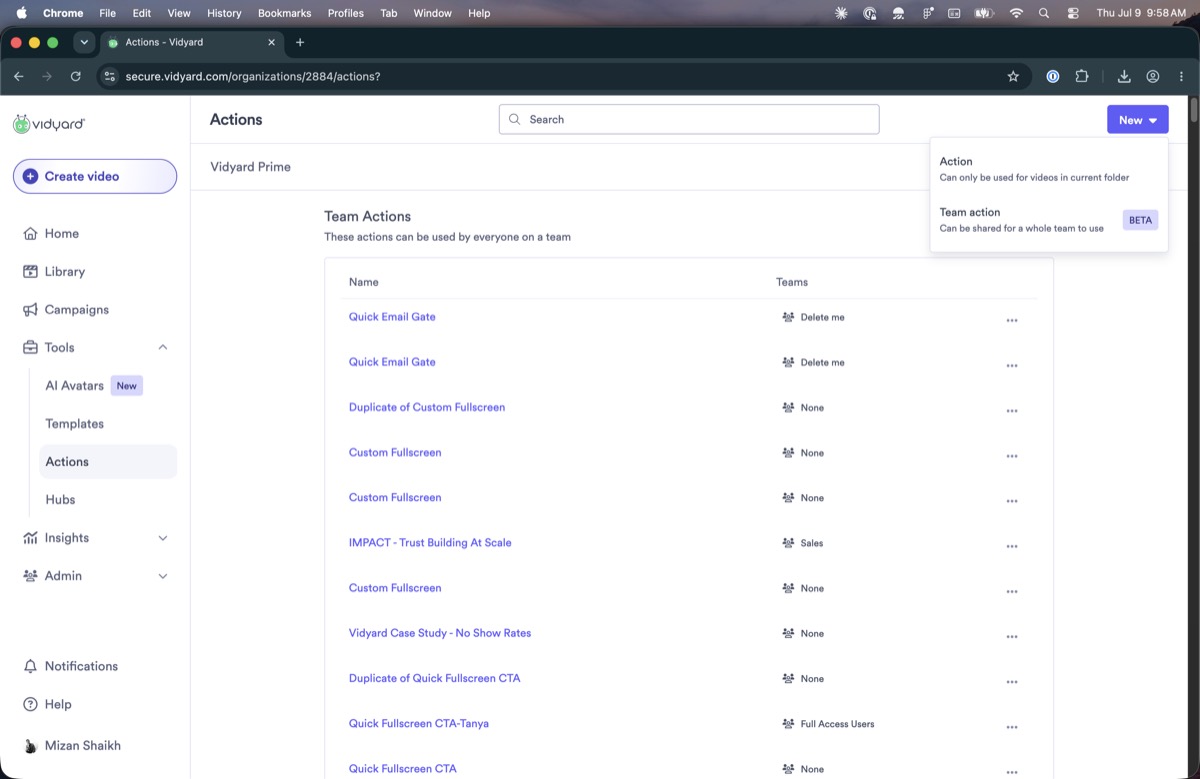
Team actions apply across a whole team: every video the team's members create inherits one. Folder actions apply to a single folder or video. Both are managed on the Actions page.

Where you set them up

Actions are created and managed on the Actions page, where you first pick a folder. An action set directly on a single video is configured from that video's own edit page.

Creating and assigning

Creating an action and applying it are two separate steps. After creating one, you assign it either by adding specific videos to it or by marking it a default, which applies it to everything in that scope.

Which action takes priority

A video can inherit an action from three places: its team, its folder, or the video itself. When more than one applies, we could not work out the rule with any confidence. Here is what we saw when we tried it:

Where the action comes from
  1. Team of the creatorthe team of whoever made the video
  2. The folderthe folder the video sits in
  3. The video itselfset on the video's edit page
What we observed
  • Tested With a team action on a folder, you can't also set a folder action; assigning the team action removed the folder one.
  • Tested A folder action marked default applied to every video and couldn't be changed on an individual one. (We only tried this with a default.)
  • Conflict We were told a video's own action takes priority, but the default above couldn't be overridden, so that doesn't hold cleanly.

Creating and editing

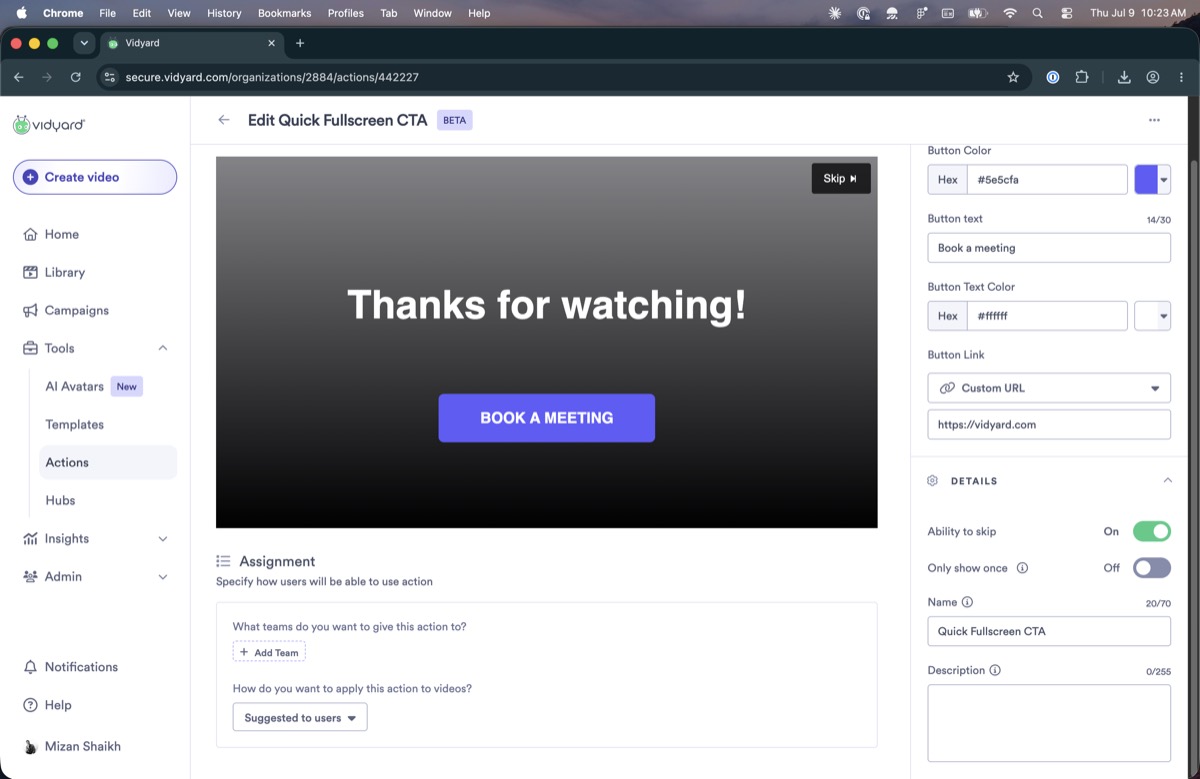
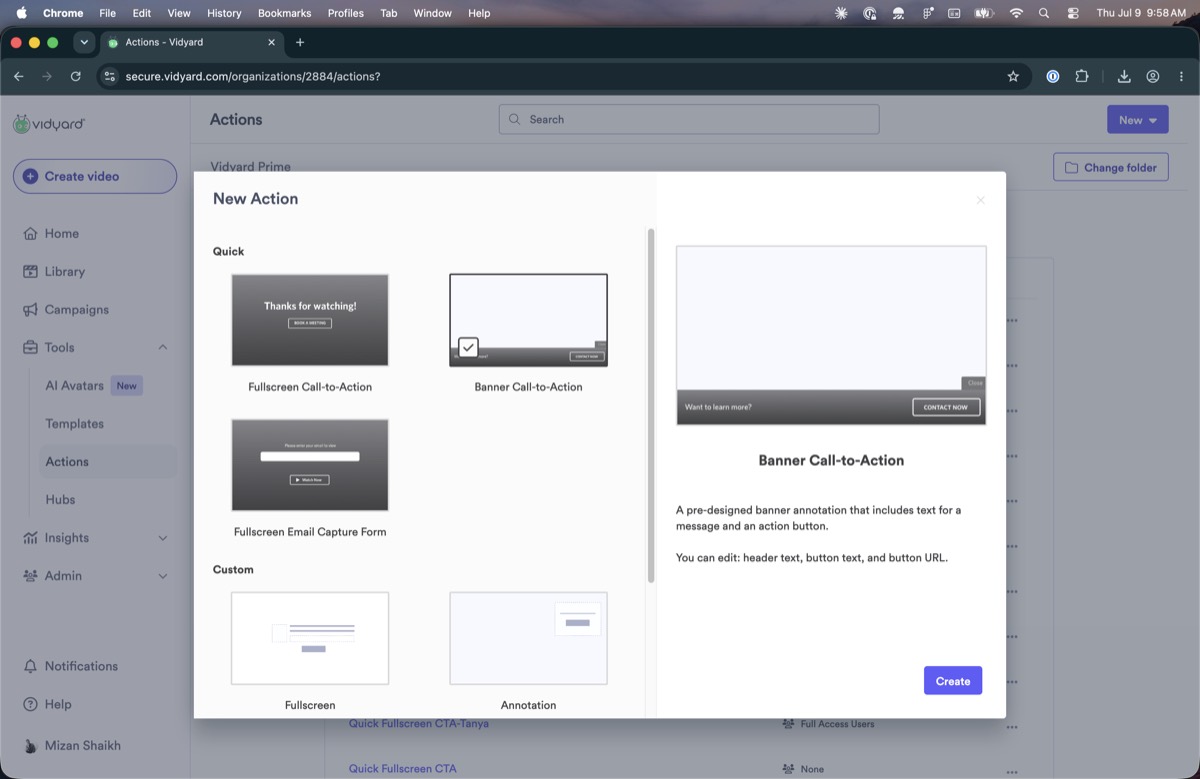
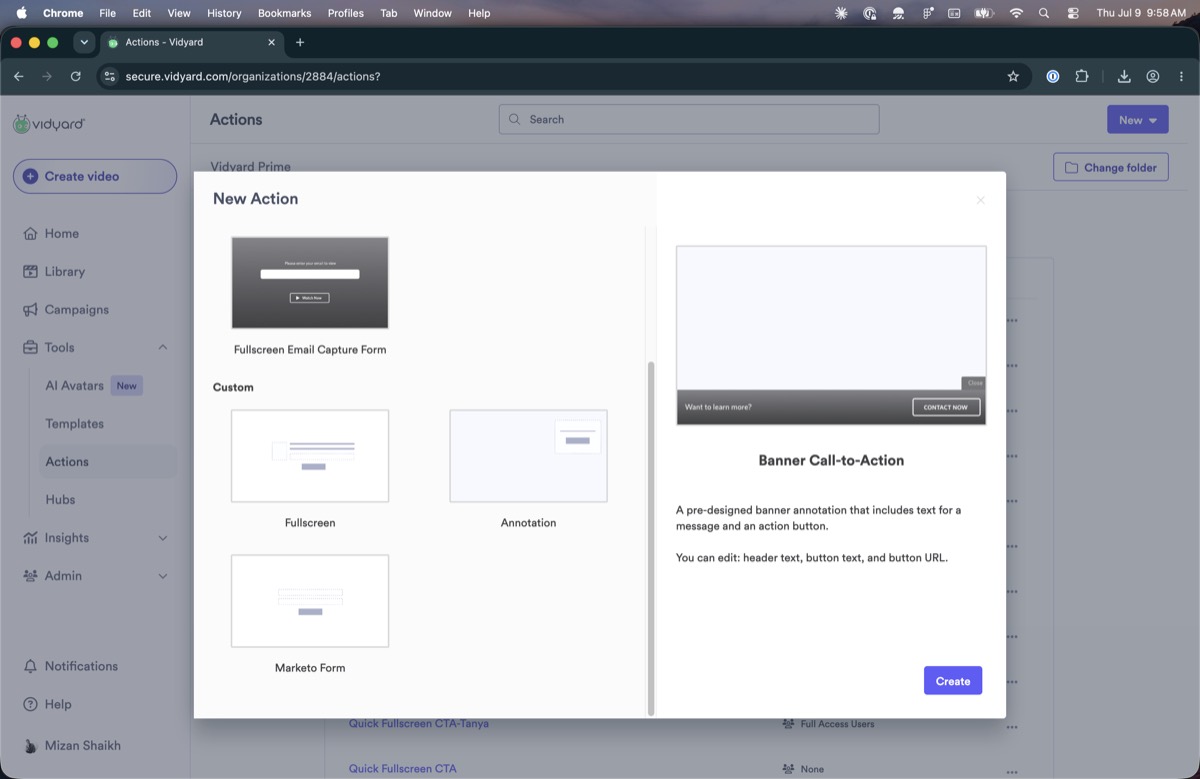
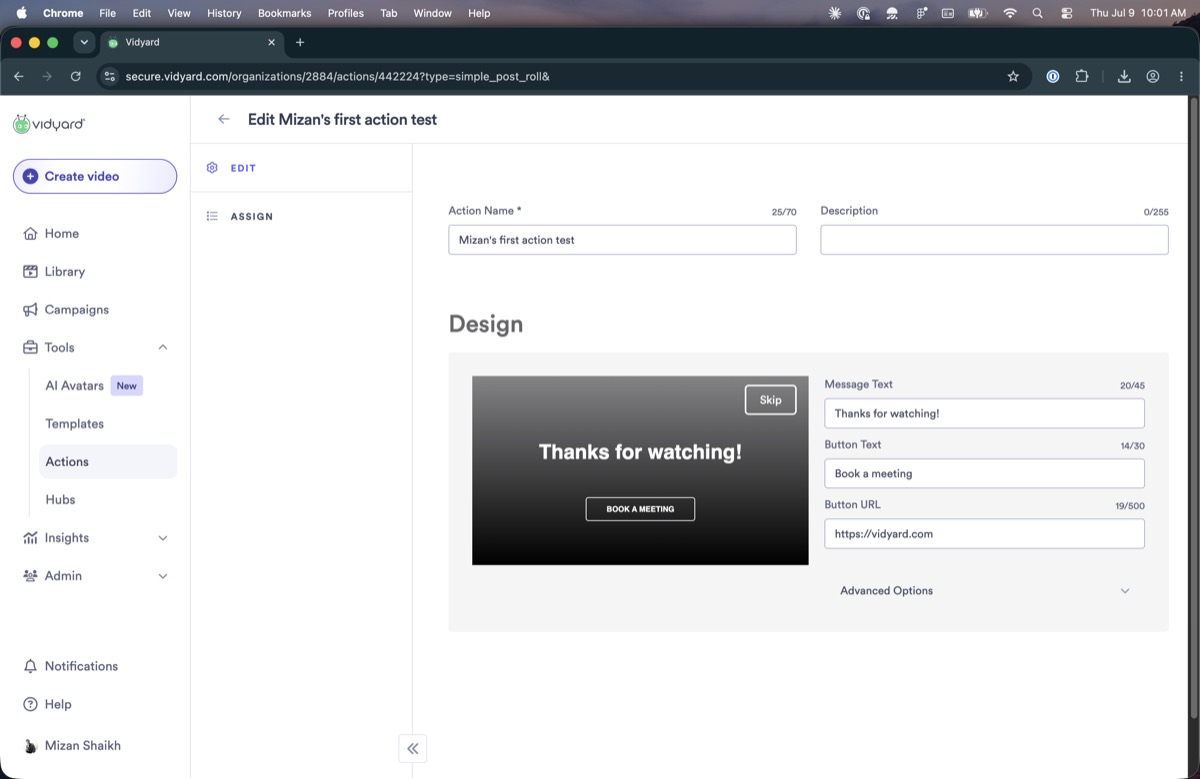
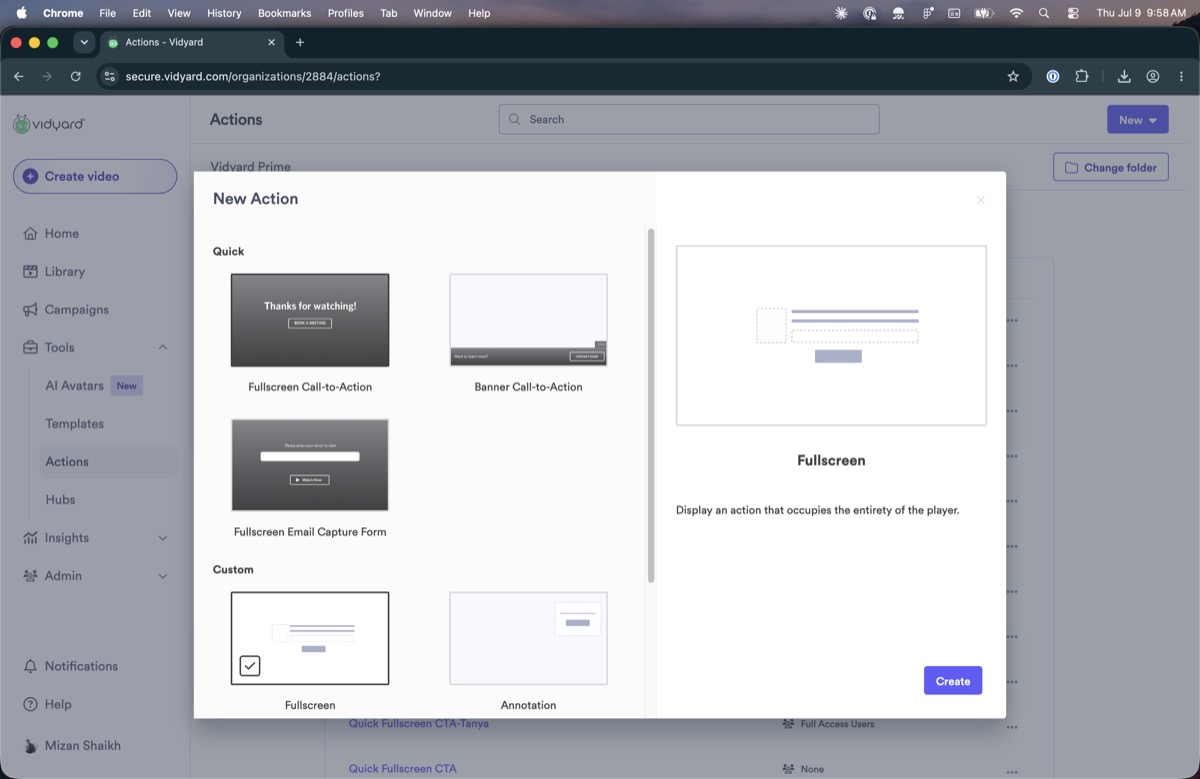
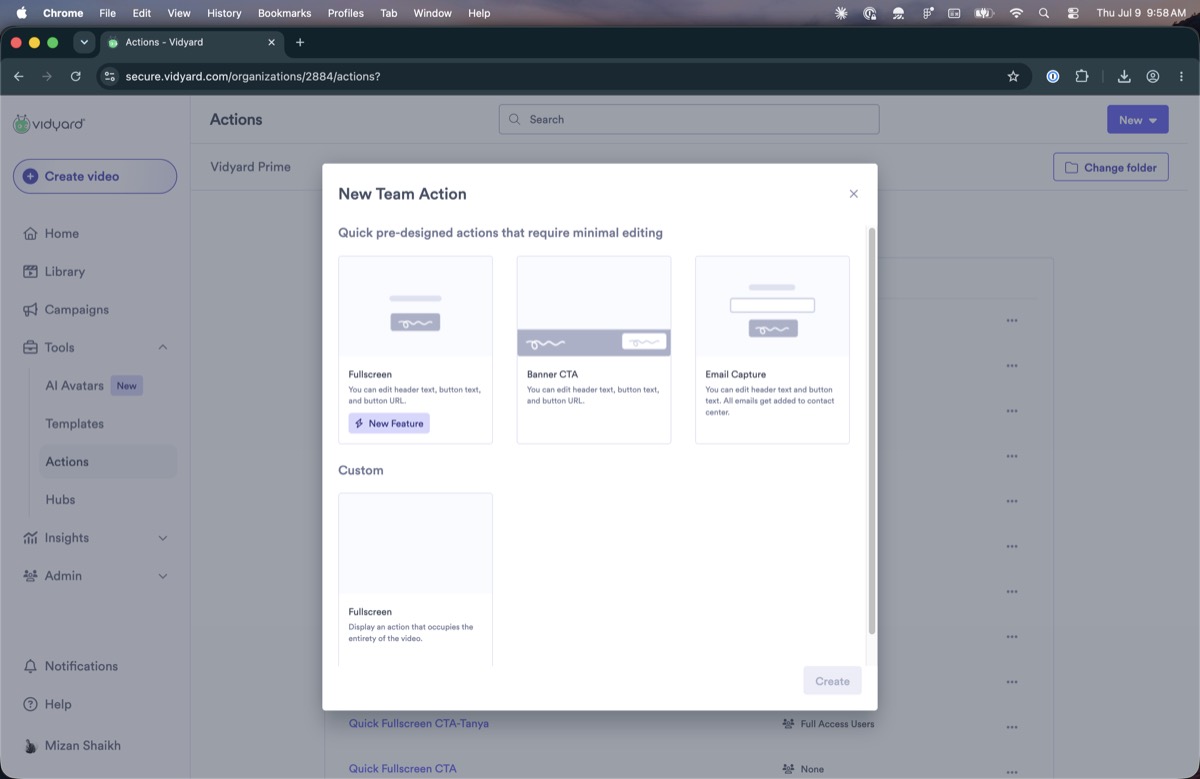
The two types are created differently. A folder action starts from a gallery of templates. A team action is created by choosing from a fixed set of types, each of which opens its own editor and settings.
What's broken

Model & architecture

1
Actions come in two types that work differently

There are team actions, which apply across a whole team, and folder actions, which apply to a folder or a single video. They do the same job, but they are built as separate systems: folder actions are created from a template gallery with a live preview, team actions from a fixed list of types with no preview, and each has its own settings panel. The names describe where an action is attached, not what it does.
Folder action template galleryTeam action type picker
The same job, created two ways: the folder-action template gallery (left) and the team-action type list (right).
2
It is unclear which action applies when more than one could

A video can receive an action from its team, its folder, or itself. When more than one applies, the priority is not documented, and we could not confirm it. In testing, setting a team action on a folder removed the folder action, and a folder action marked as the default could not be changed on an individual video. Whether that reflects a fixed order or simply the most recent change winning was not resolved.

3
Actions can only be managed from the Actions page

There is no way to add or change an action from the folder you are working in. All setup happens on the separate Actions page, and a folder gives no indication of which actions its videos have inherited.

4
There are overlapping ways to edit and assign an action

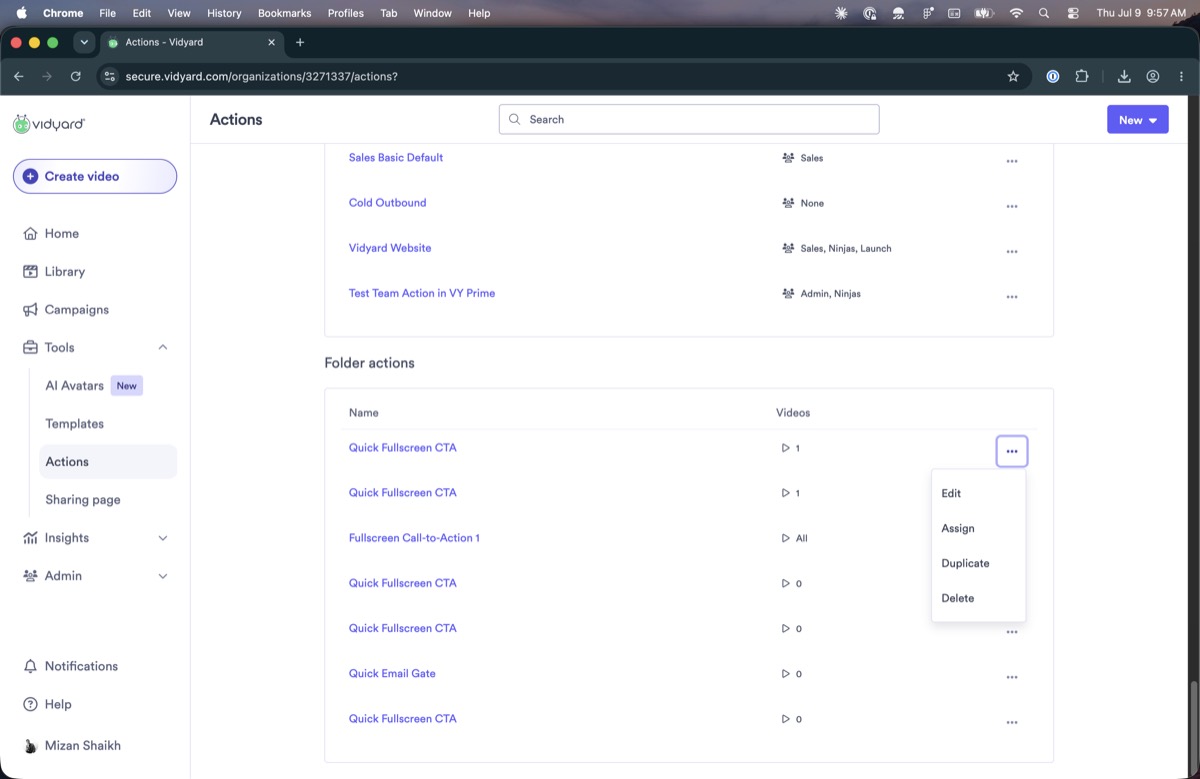
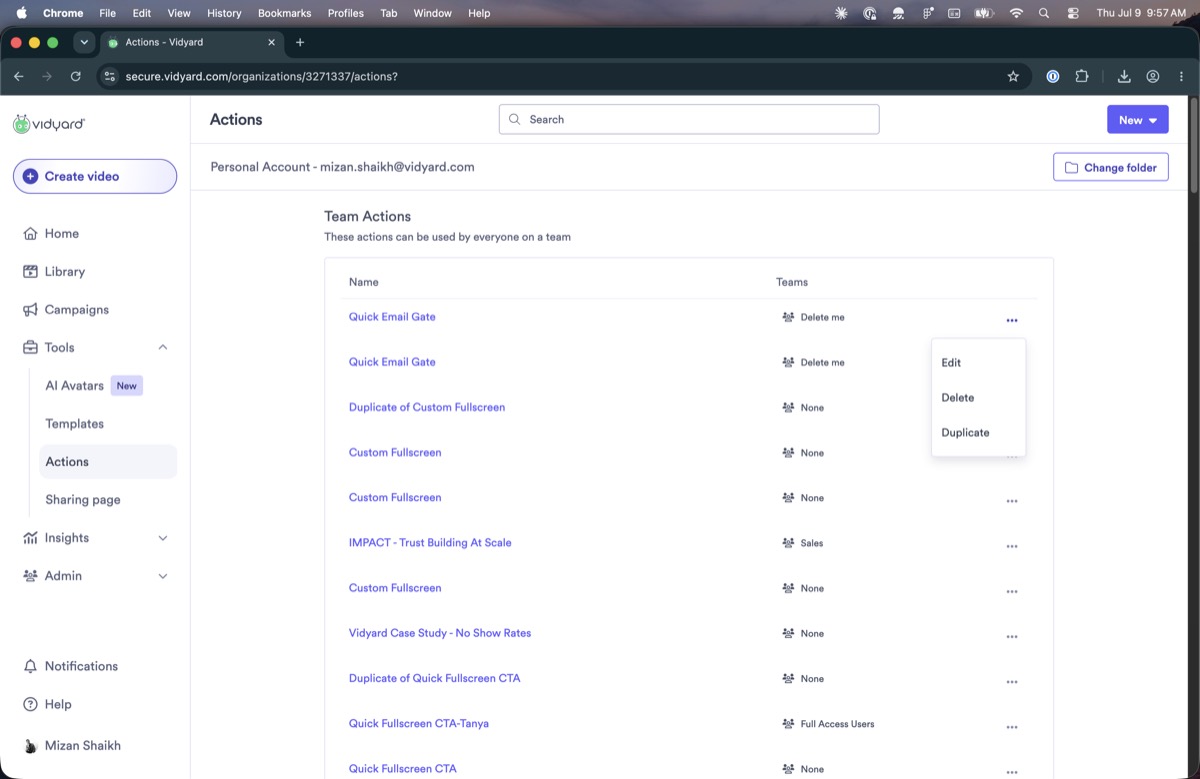
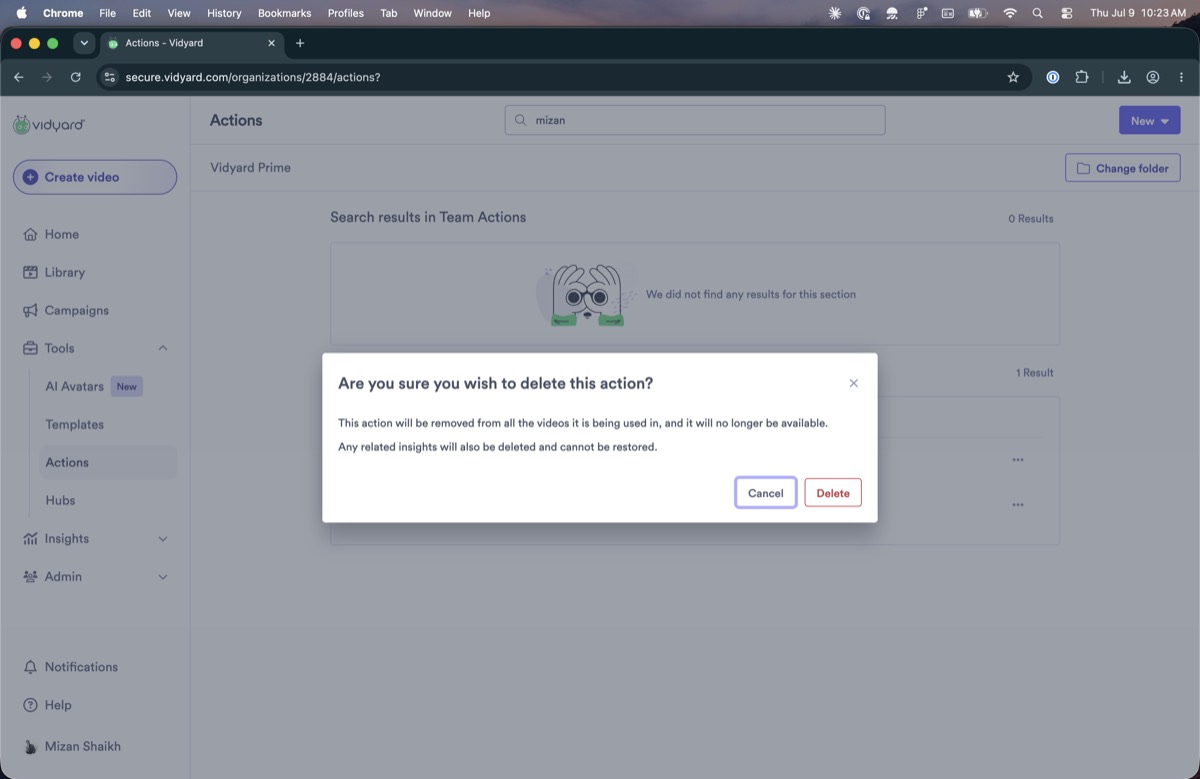
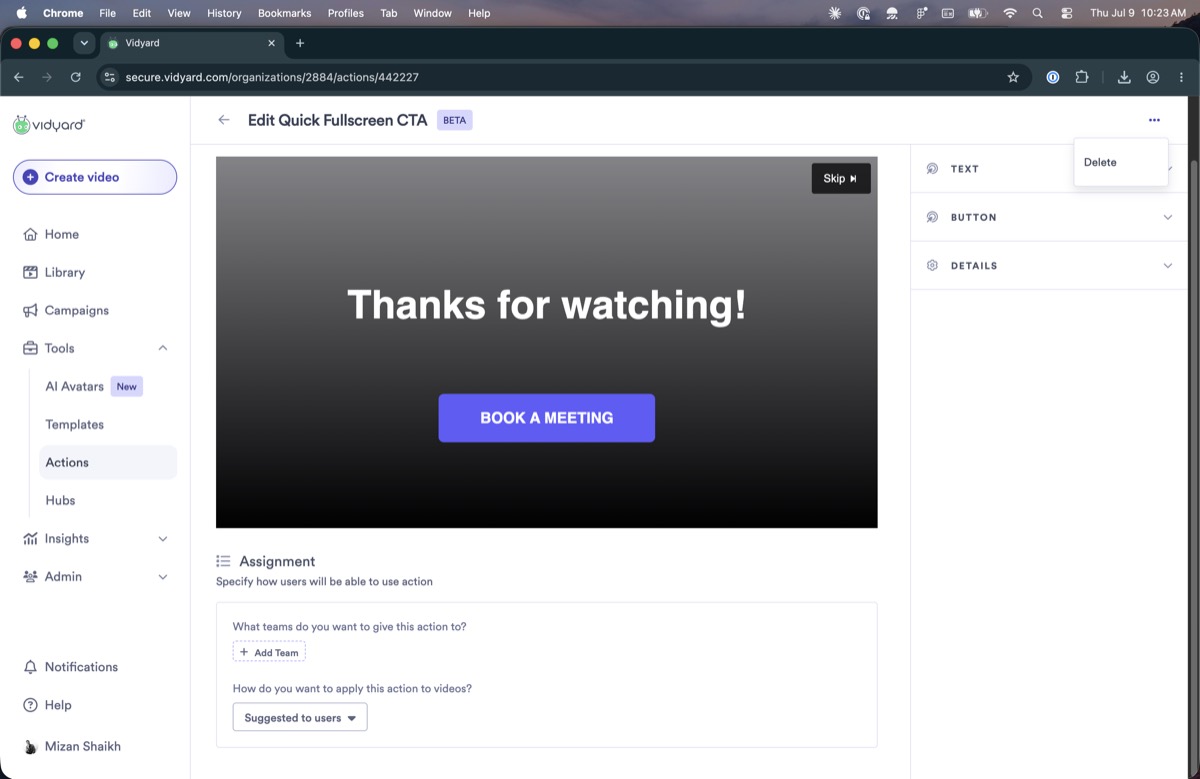
On the Actions page, clicking an action's name opens the edit flow. The row's own menu repeats Edit (and, for folder actions, Assign) alongside Duplicate and Delete, so the same operations are reachable several ways with no clear primary path.

Folder-action row menu with Edit, Assign, Duplicate, DeleteTeam-action row menu
The folder-action row menu (left) and team-action row menu (right). Edit here duplicates the flow you get by clicking the action's name; folder menus also carry Assign.

Discoverability

1
Folder actions sit below the team actions and are easy to miss

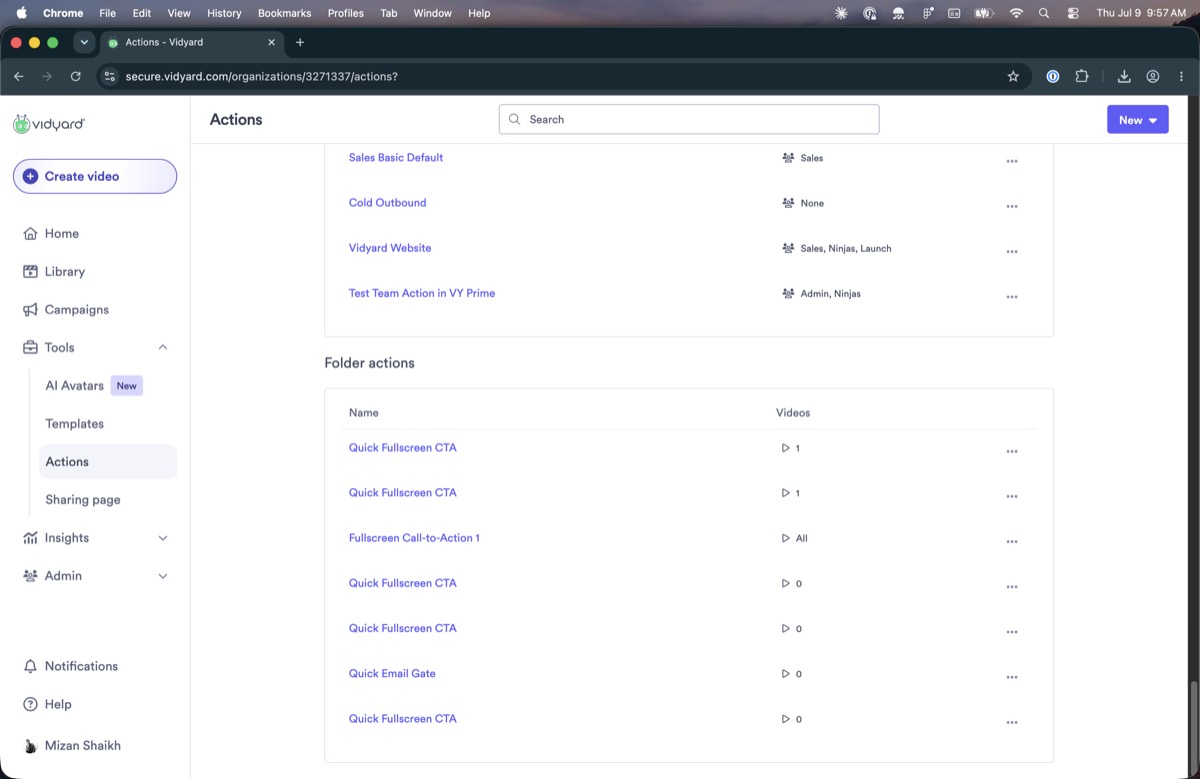
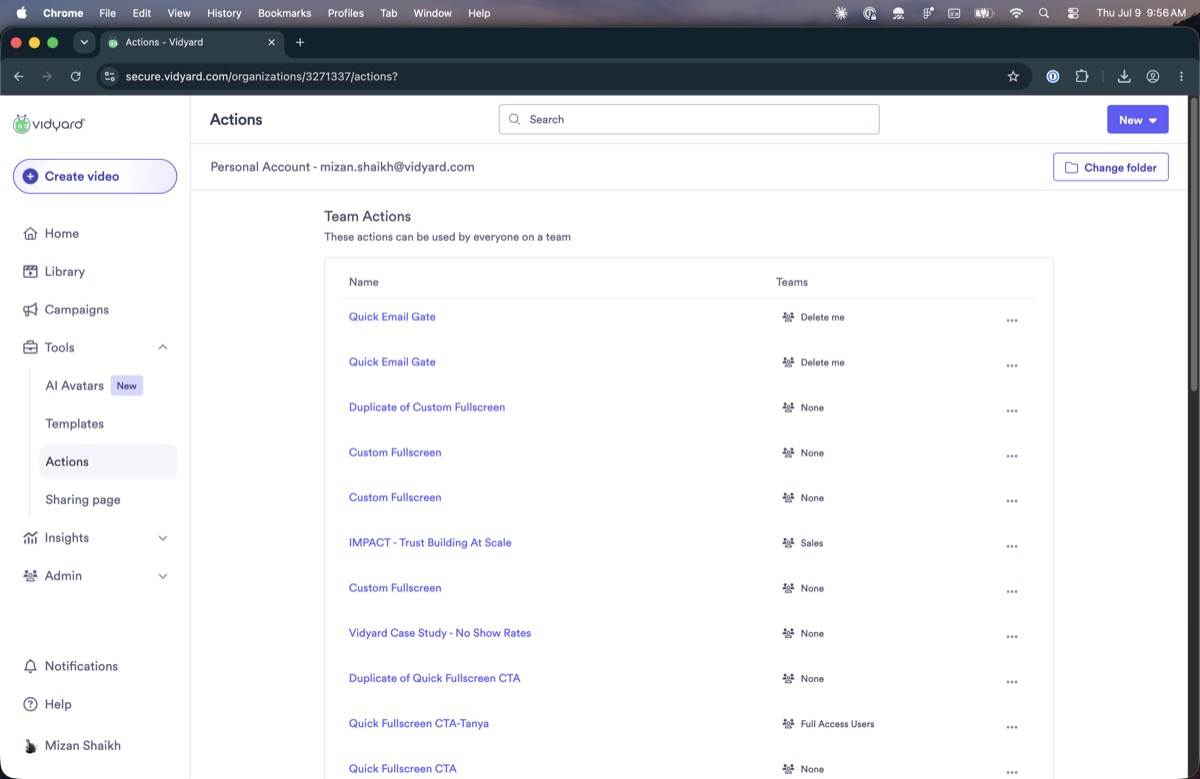
On the Actions page, folder actions are listed underneath the team actions, with nothing at the top indicating a second list exists. When the team list is long or paginated, the folder actions fall below the fold.

Actions page with folder actions listed below team actions
Team actions at the top; folder actions listed below, with nothing indicating a second list is there.
2
The Change folder control only filters the folder list

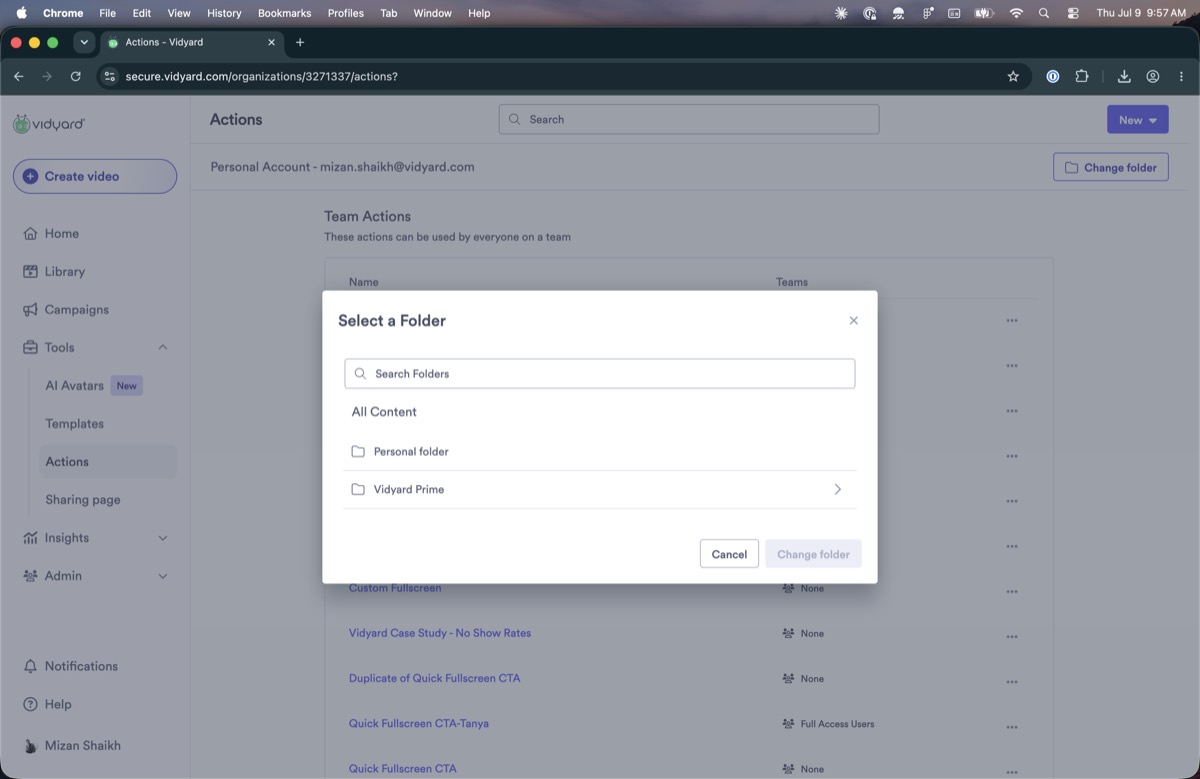
The Change folder control in the top navigation re-scopes the folder-action list but leaves the team-action list unchanged. Nothing indicates that it affects only one of the two lists.

Select a folder modal
The Change folder picker changes only the folder-action list, not the team actions above it.
3
Creating an action does not apply it, and gives no sign of what happened

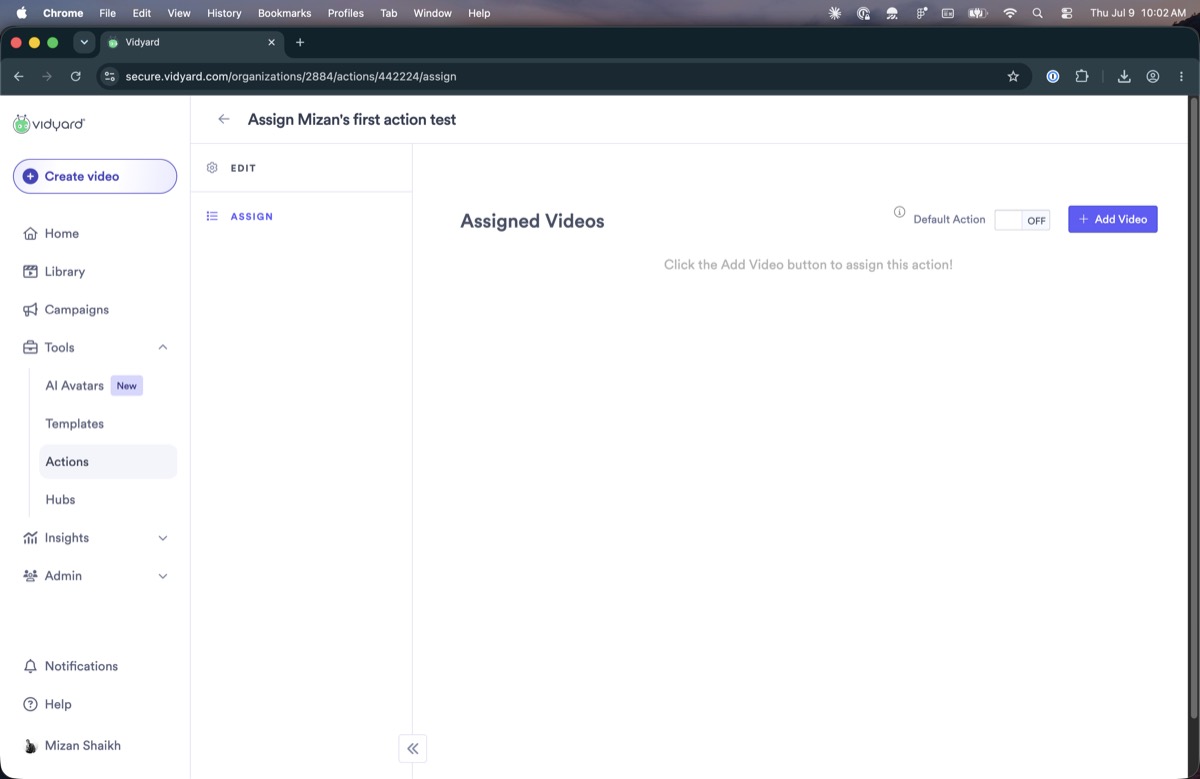
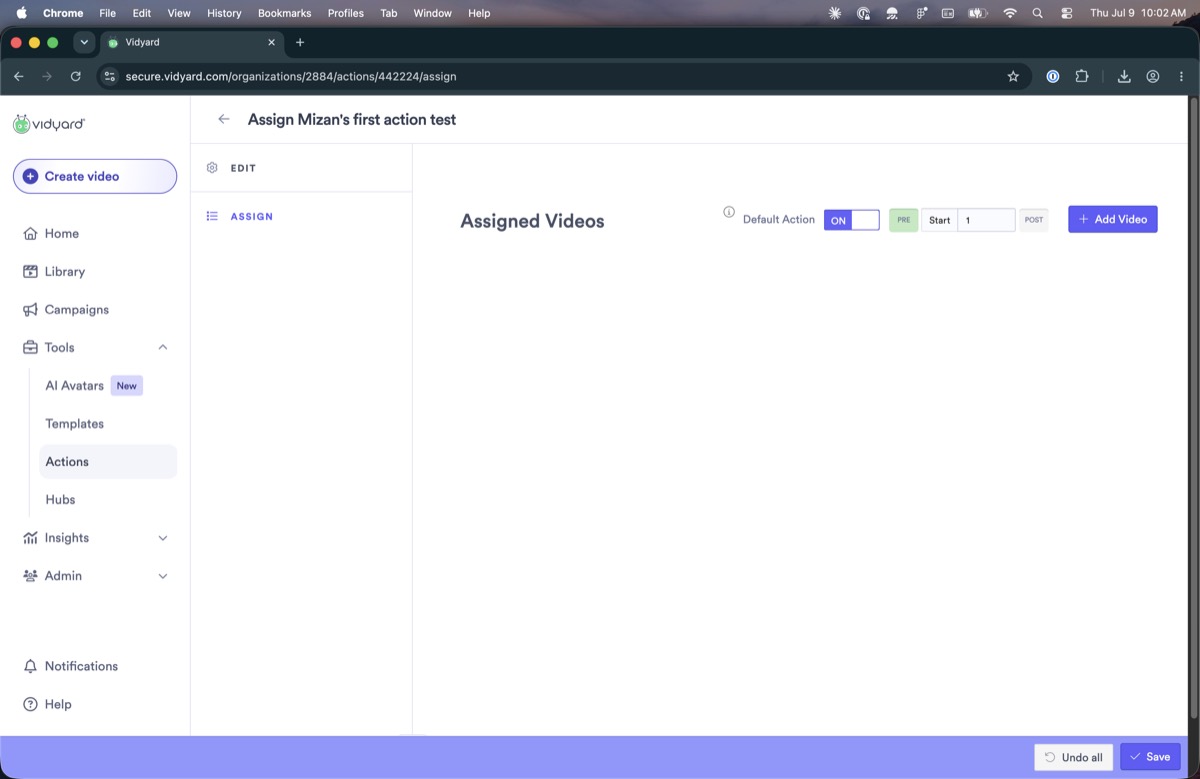
A new action stays inactive until you separately add videos to it or mark it as a default. There is no confirmation after saving and no clear place the action then appears, so it is easy to assume creating it failed.

Empty assigned videos screen after creating an action
Just after creating an action: an empty Assigned Videos list, with the Add Video step as the only way forward.
4
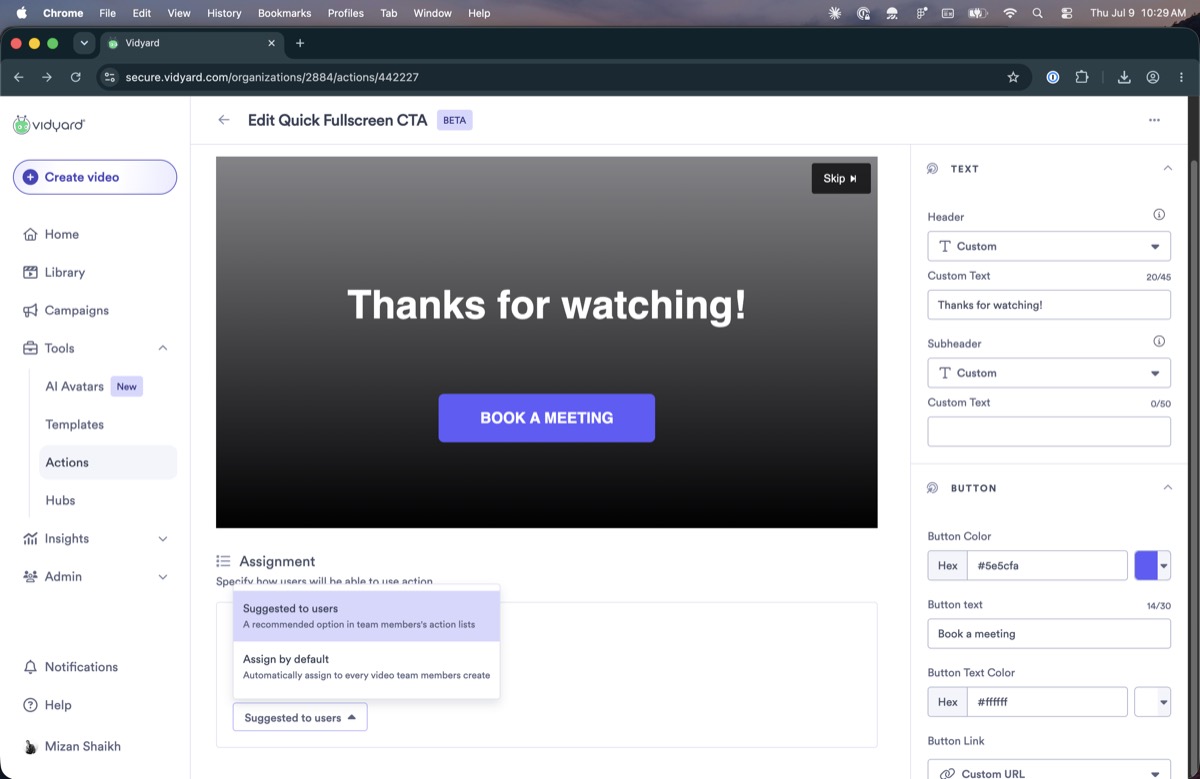
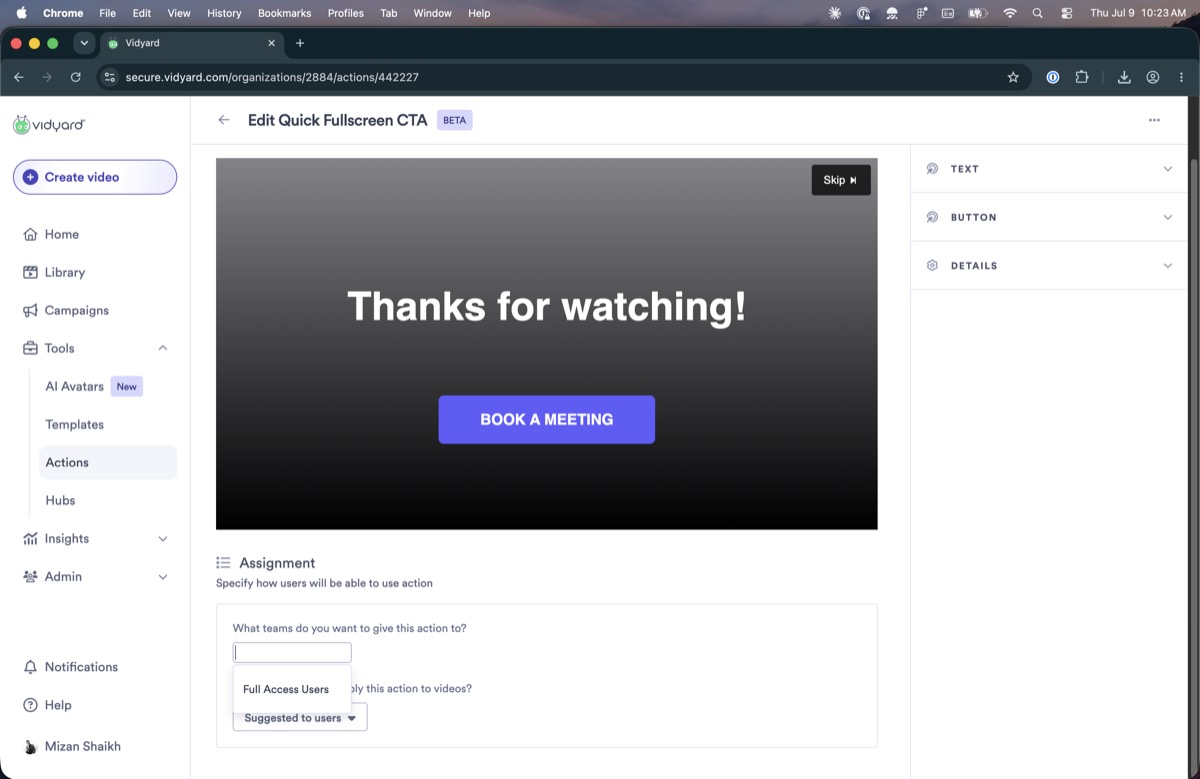
It's unclear where a “suggested” action appears

You can set an action as “suggested to users,” but nothing shows where that suggestion is surfaced. It did not appear on the action list afterward, so it's unclear the setting did anything.

Assignment option to suggest an action to users
Setting an action as “suggested to users,” with no visible sign of where the suggested badge then appears.

Search

1
The search field has no clear button

Once you type in the Actions search, there is no control to clear it and return to the full list in one step.

2
Search misses partial words

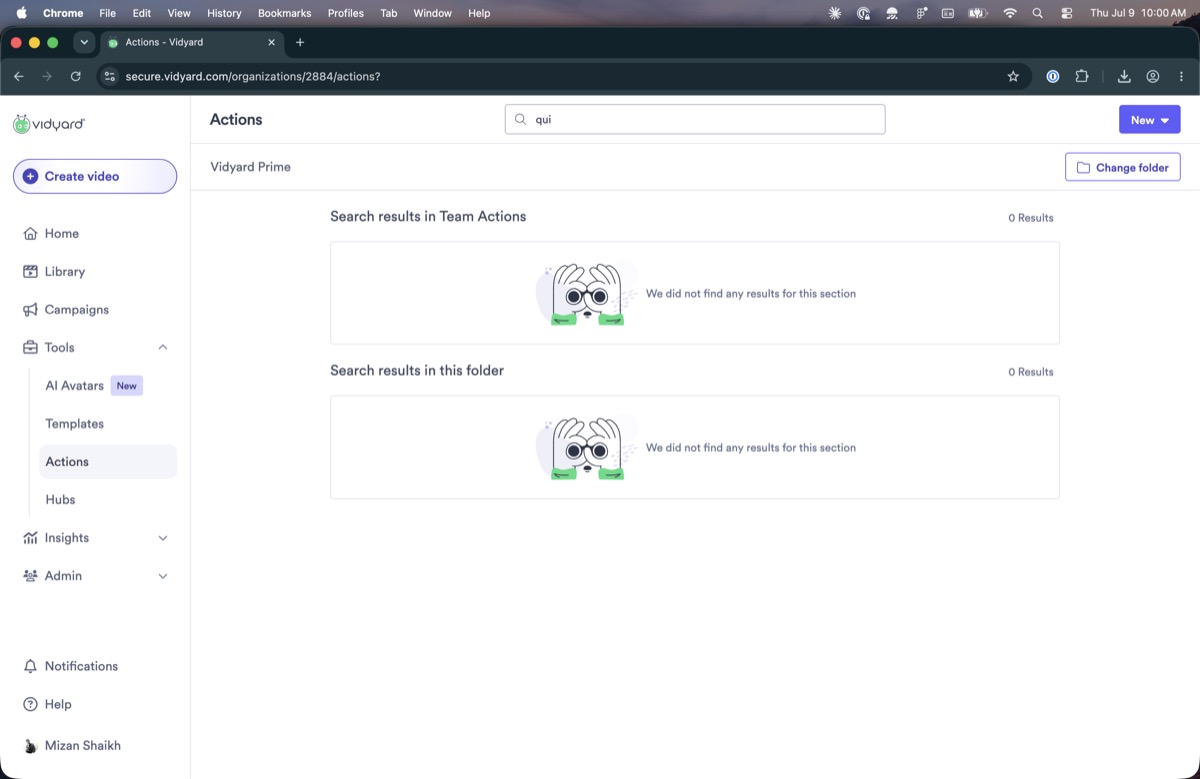
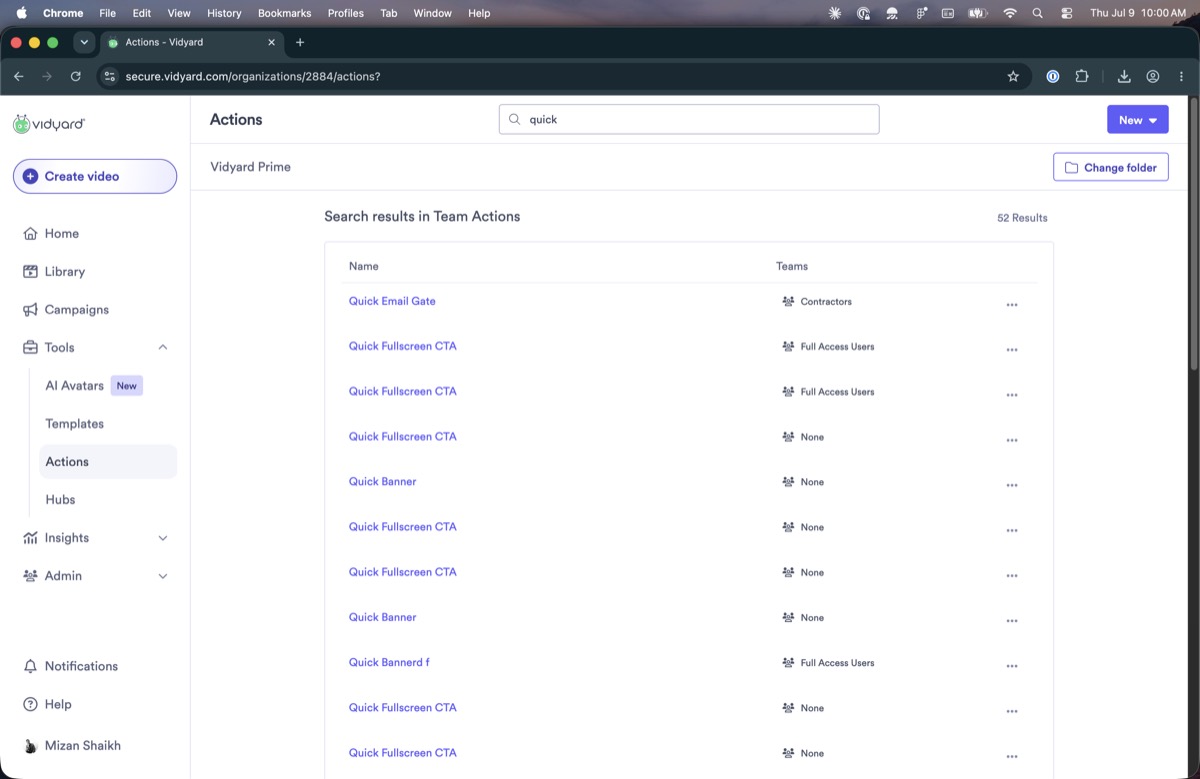
Results depend on how much of a word you type. Searching “qui” returns nothing, while searching the full word “quick” returns the “Quick…” actions that “qui” should also have matched.

Searching qui returns no resultsSearching quick returns 52 results
“qui” returns no results (left); the full word “quick” returns 52 (right).

Interaction & behaviour

1
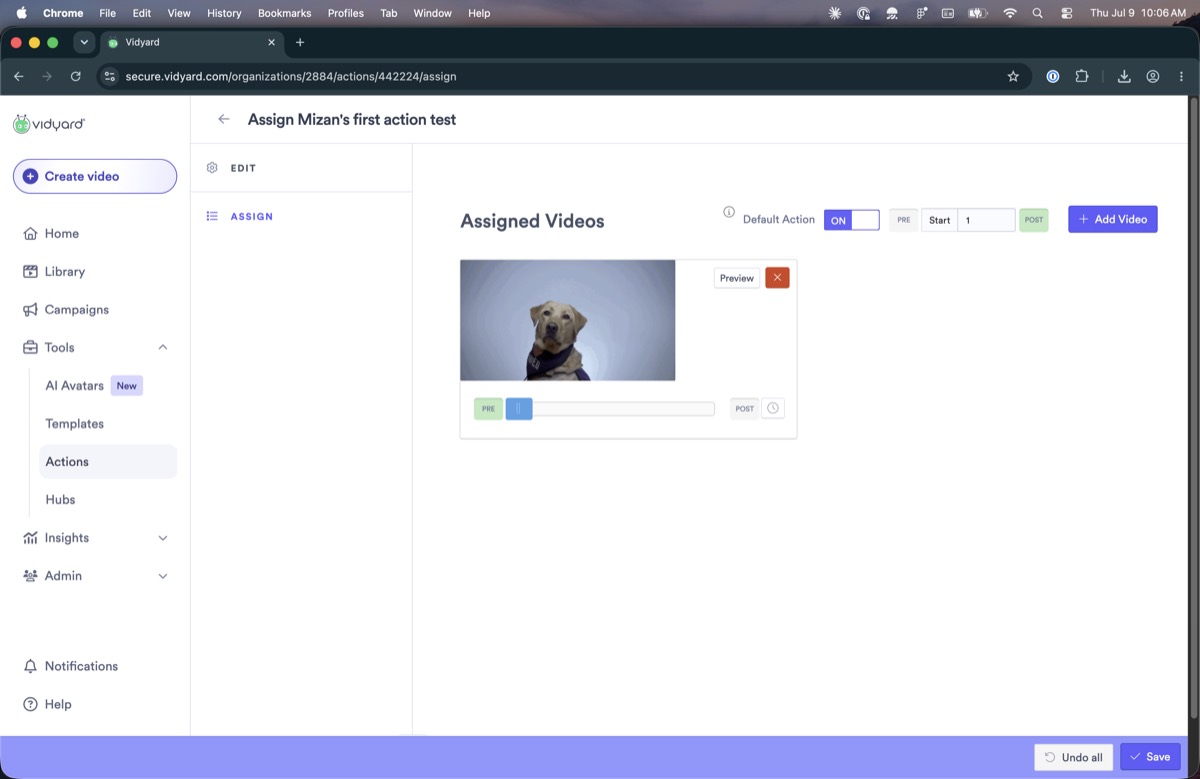
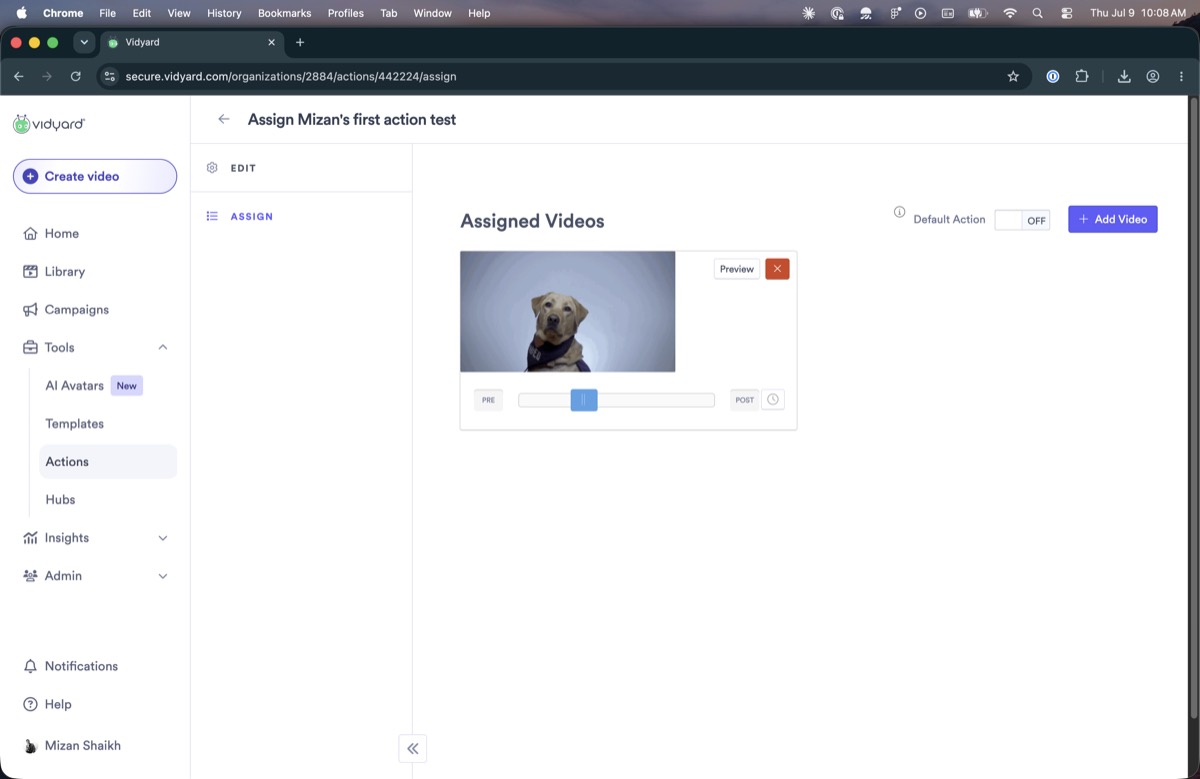
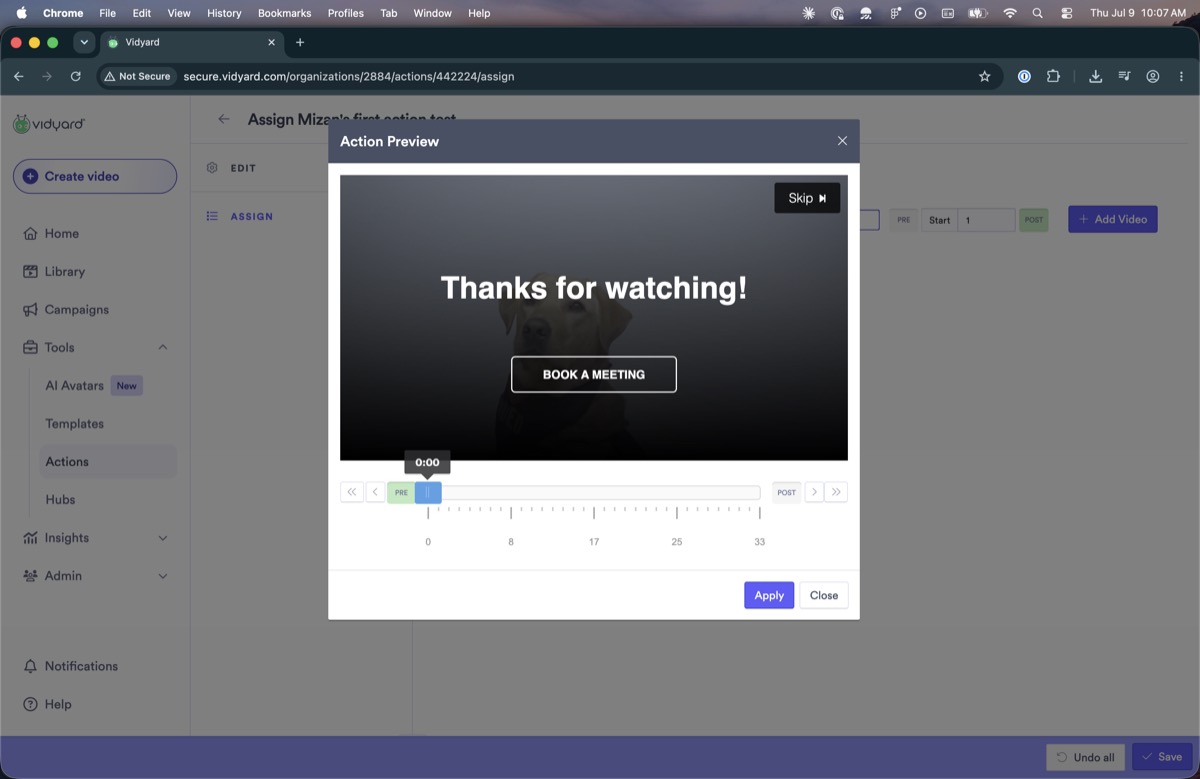
The timeline scrubber is confusing

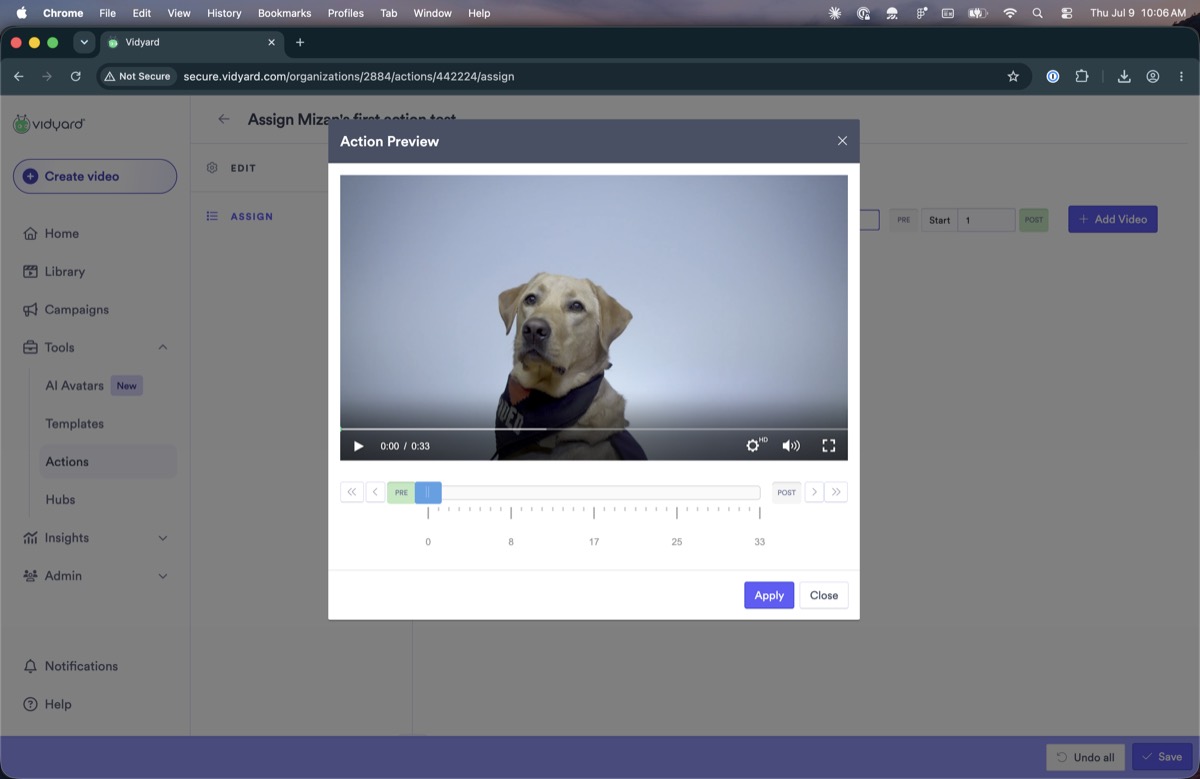
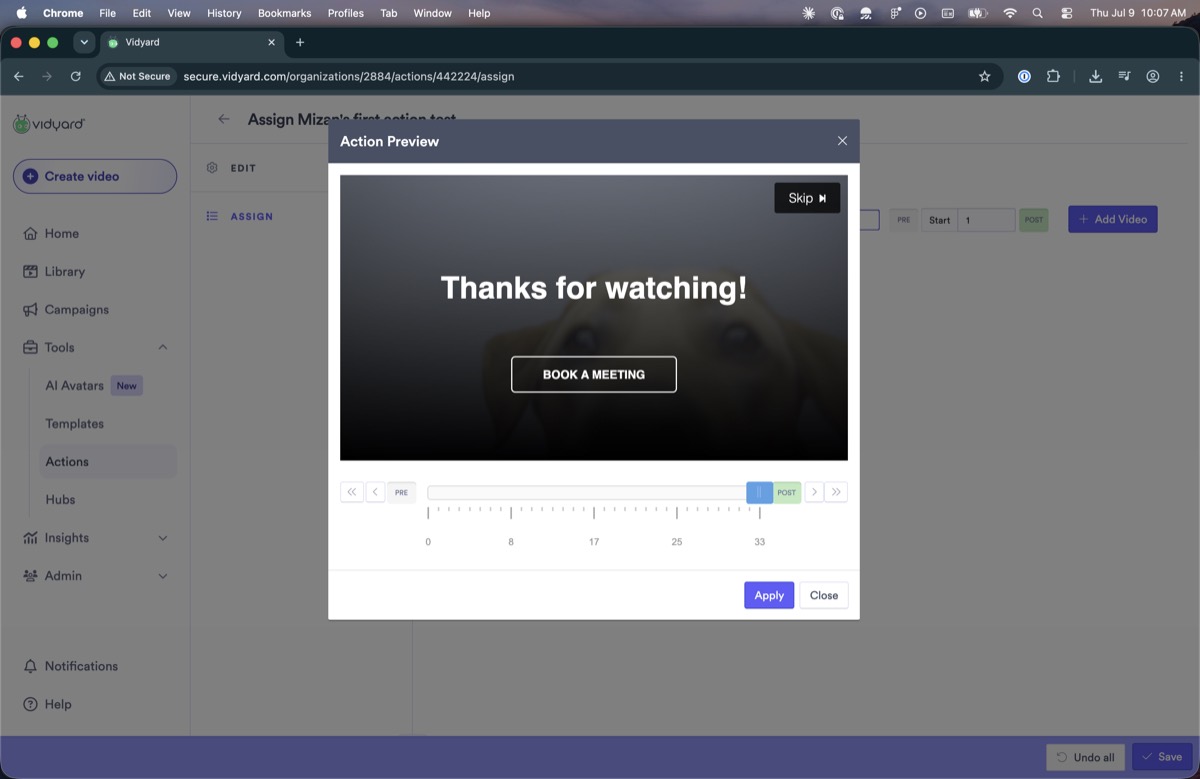
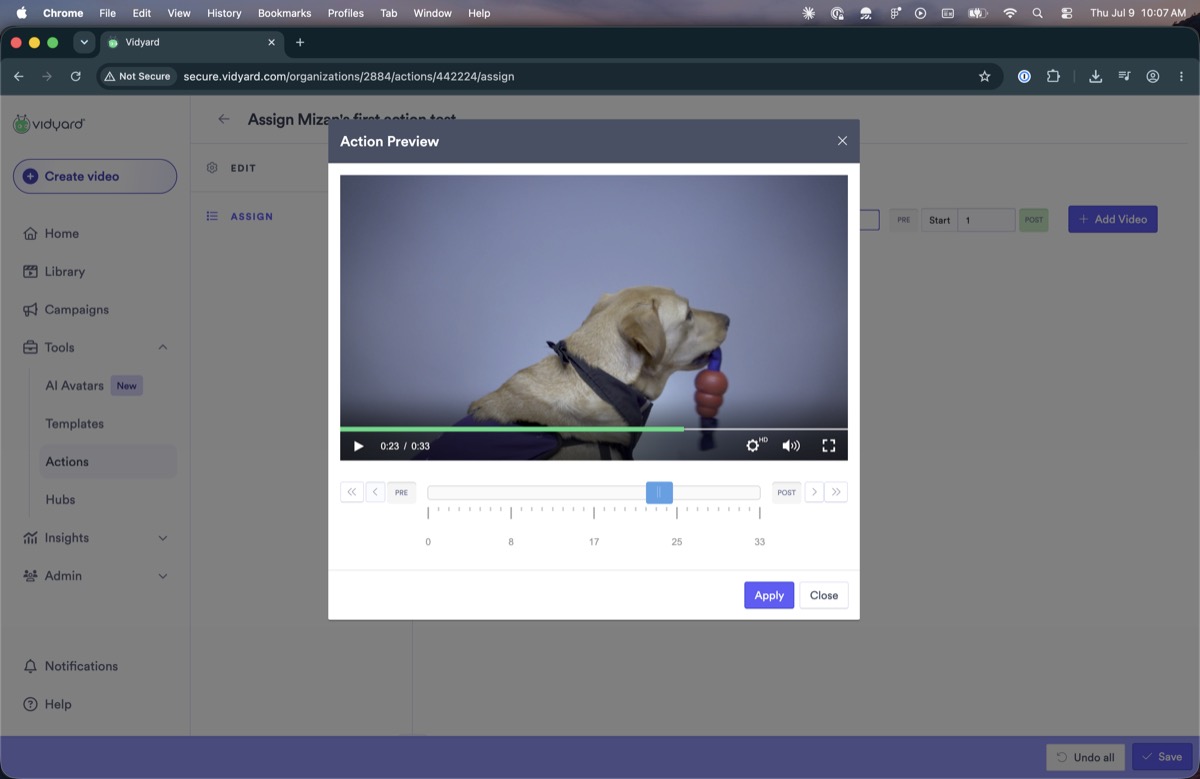
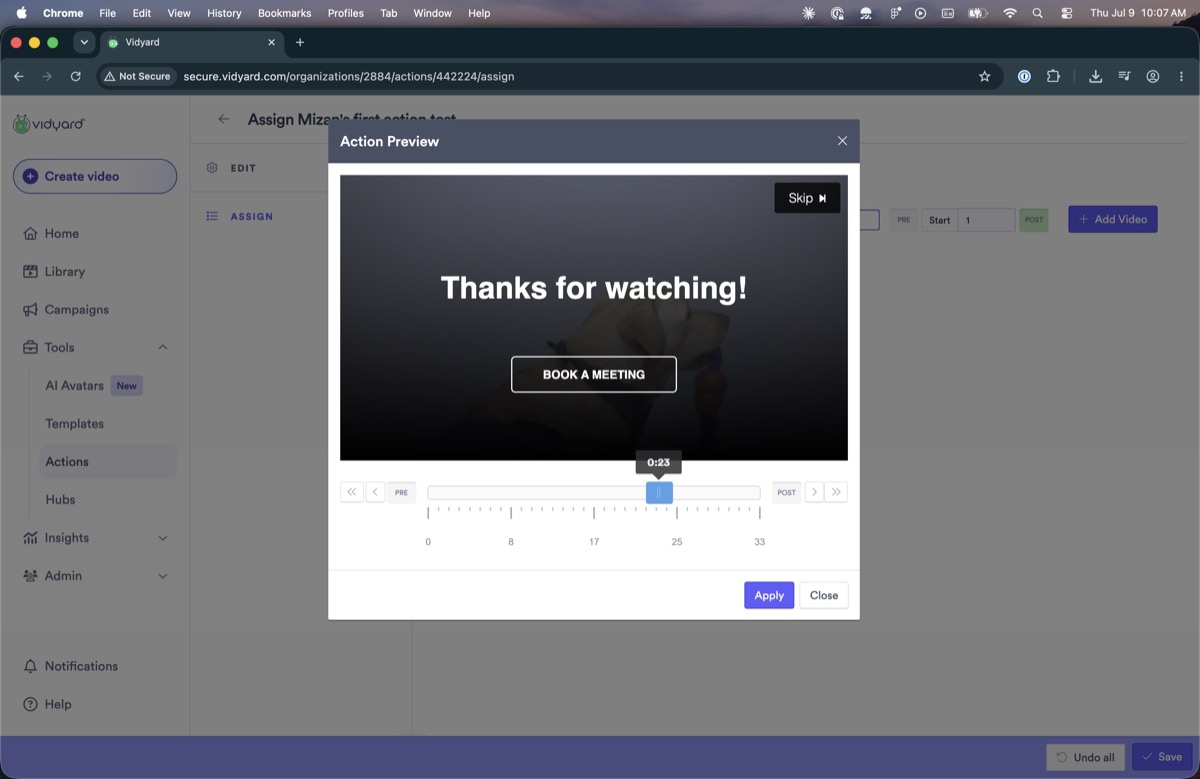
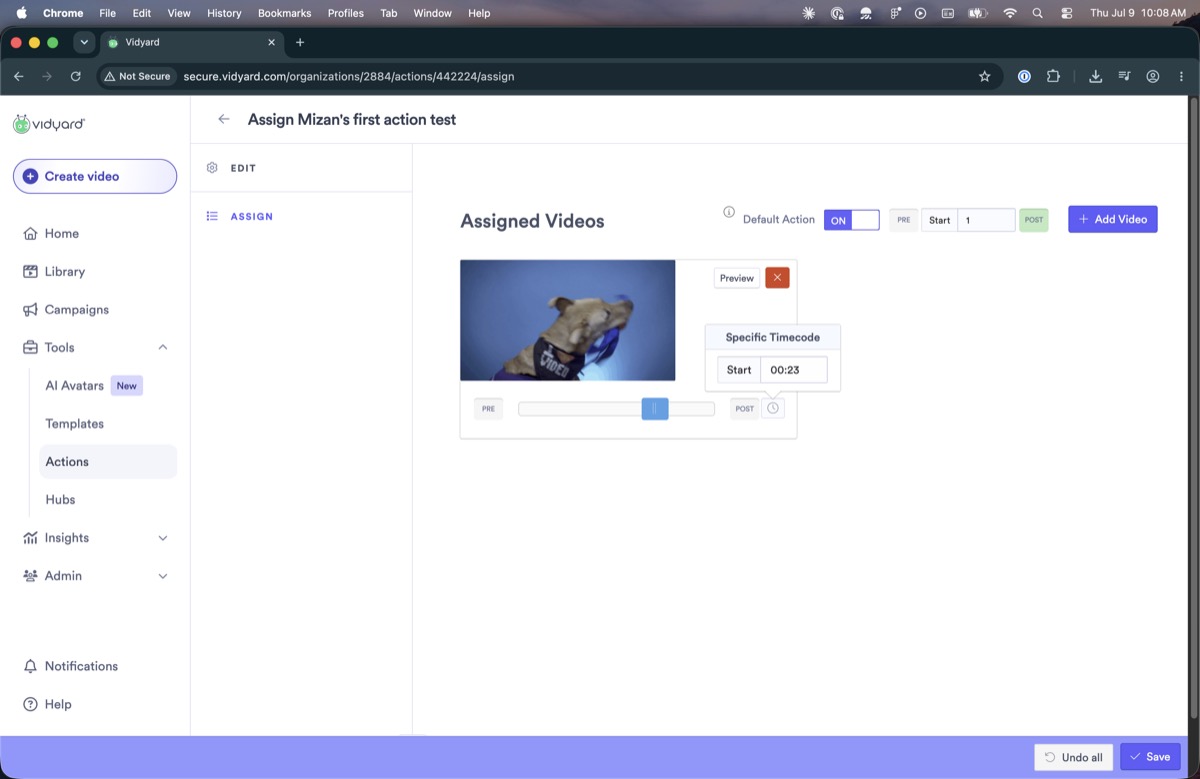
Choosing when an action appears uses a timeline scrubber with Pre and Post buttons and a timecode field. The controls are icon-only with no tooltips, so their purpose is unclear; the field between Pre and Post (showing “1”) is permanently disabled; the same scrubber reappears in the preview dialog, duplicating the player's own; and the preview only shows once you hover over the scrubber.

Assignment screen timeline scrubber with a disabled fieldAssignment screen scrubberAction preview dialog with a duplicate scrubber
The scrubber on the assignment screen (left, centre) and again in the preview dialog (right): icon-only controls, a permanently-disabled field, and no tooltips.
2
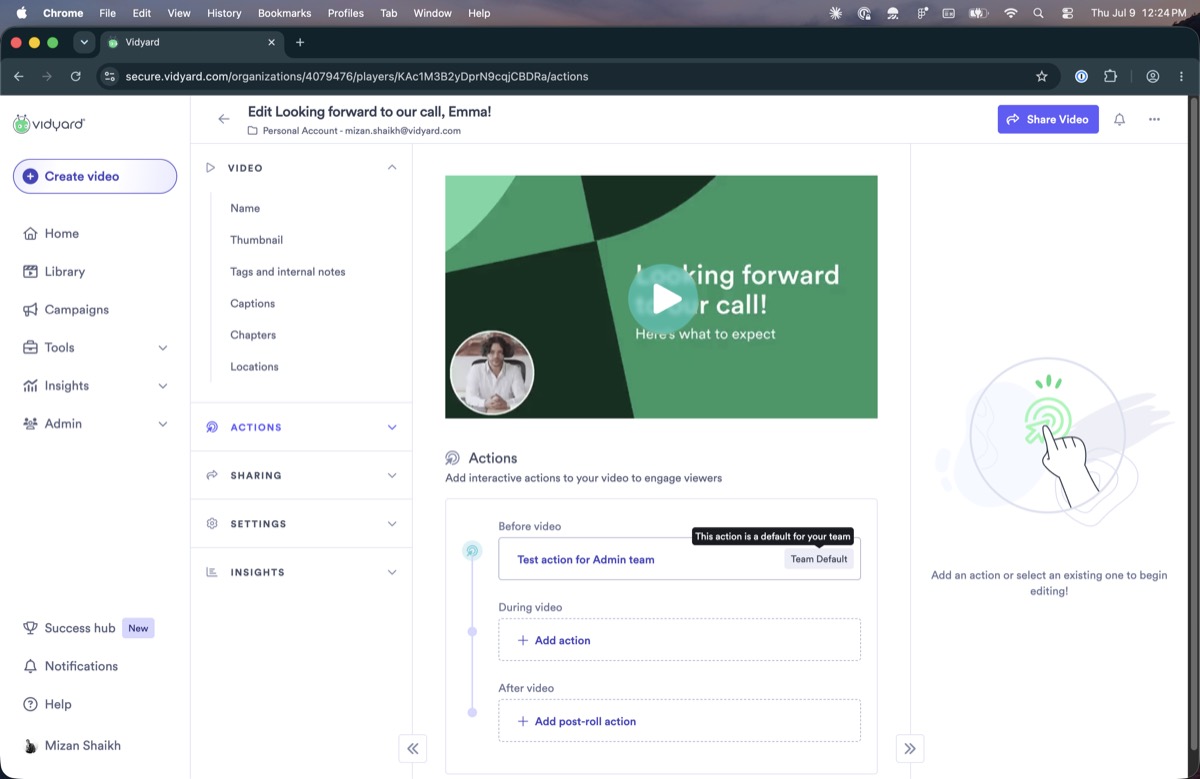
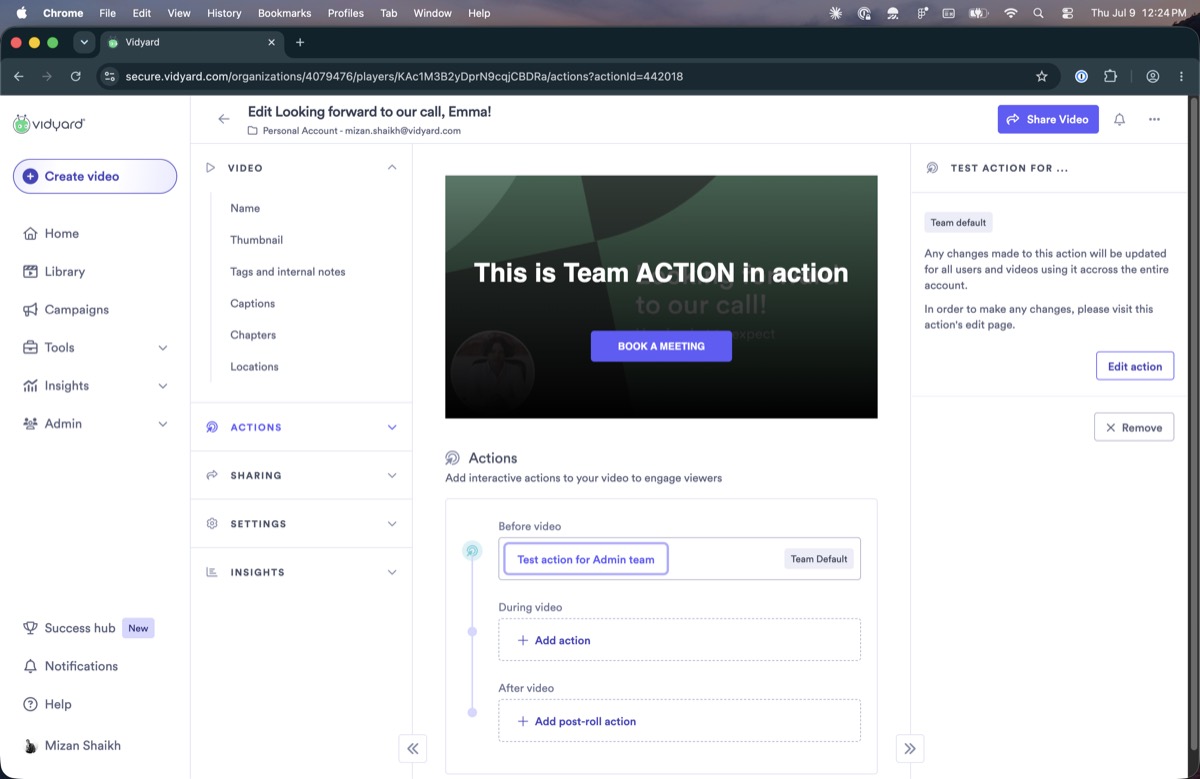
The team-default badge looks like a button but is not

The badge marking a team default appears clickable but does nothing when clicked.

Team Default badge with a tooltip on a video's actionSelecting the team-default action opens a read-only panel
The “Team Default” badge shows a tooltip on hover, so it reads as interactive (left). Clicking the badge does nothing; selecting the action instead opens a panel that only links you to its edit page to make changes (right).
3
Actions are assigned and unassigned automatically, without warning

Assignments change on their own in response to other actions. Adding a team action removed a folder action's assignment, with no notice that it had happened.

4
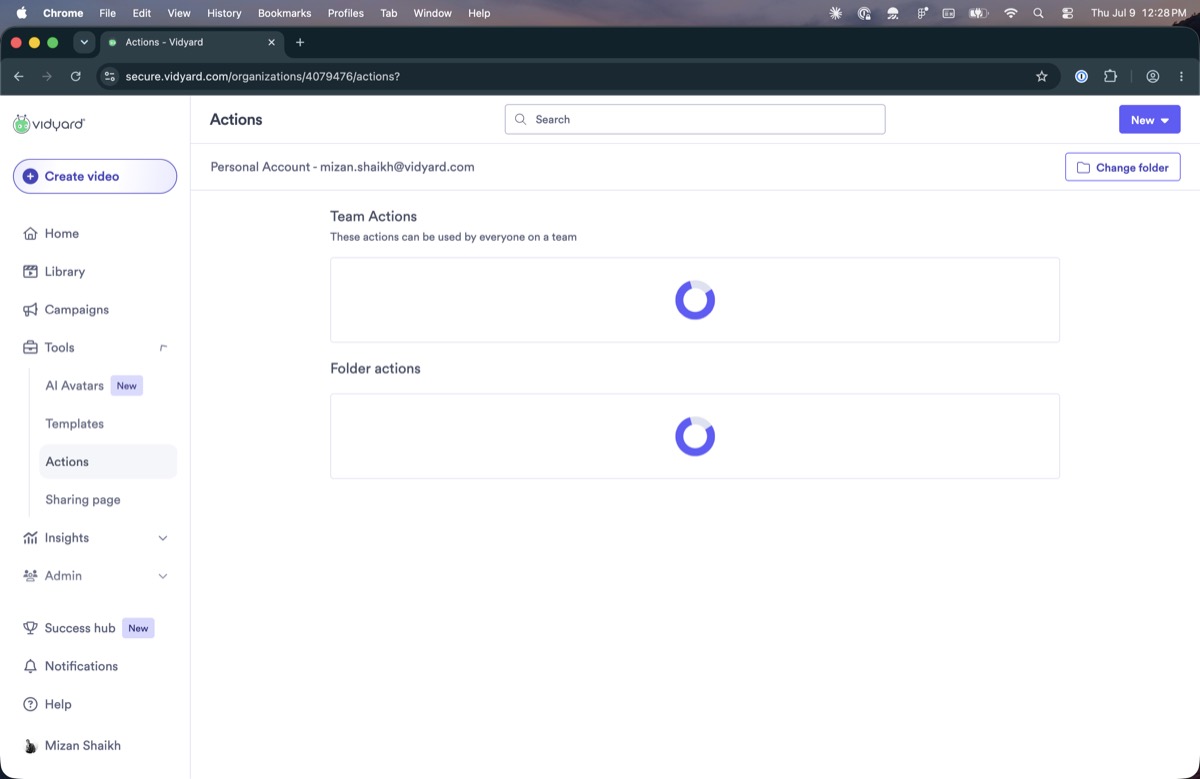
Loading behaviour is inconsistent

Some lists show a loading spinner, others show nothing, and none use skeleton placeholders. Because the team-action list loads after the rest of the page, content shifts as it arrives.

Actions page with loading spinners on both lists
The Actions page while its lists load: spinners here, and no skeleton placeholders.
5
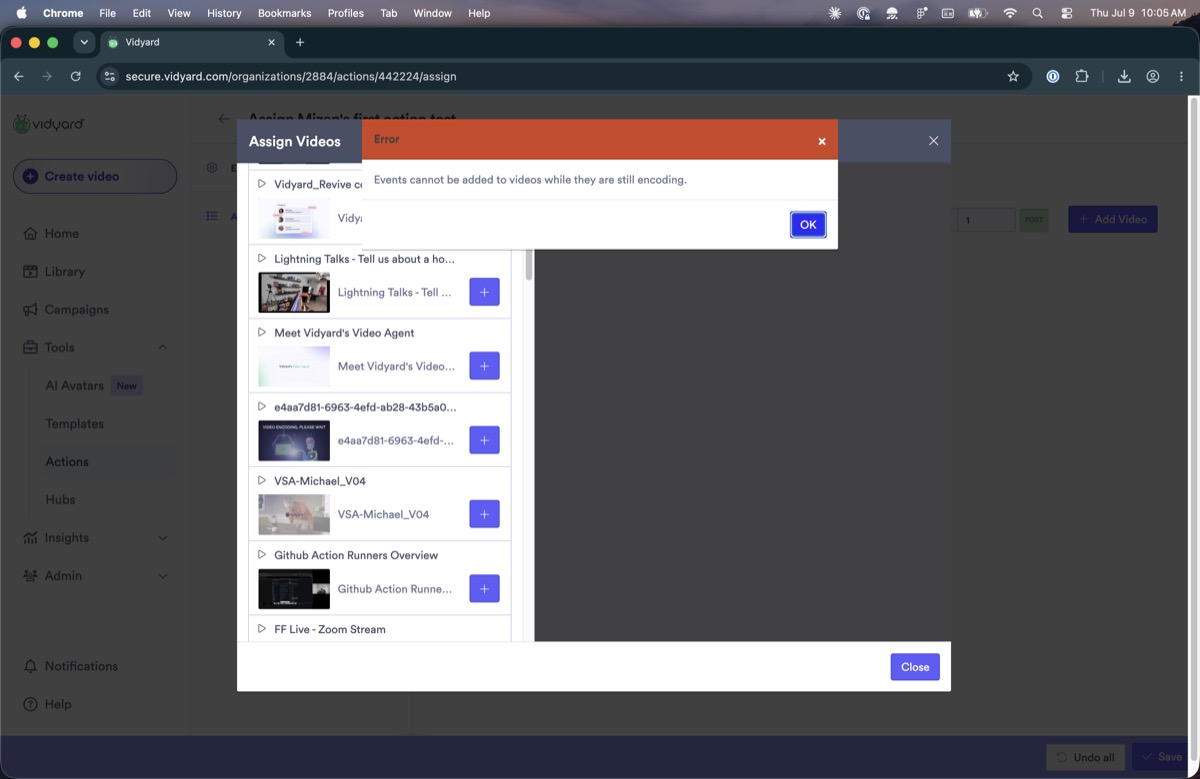
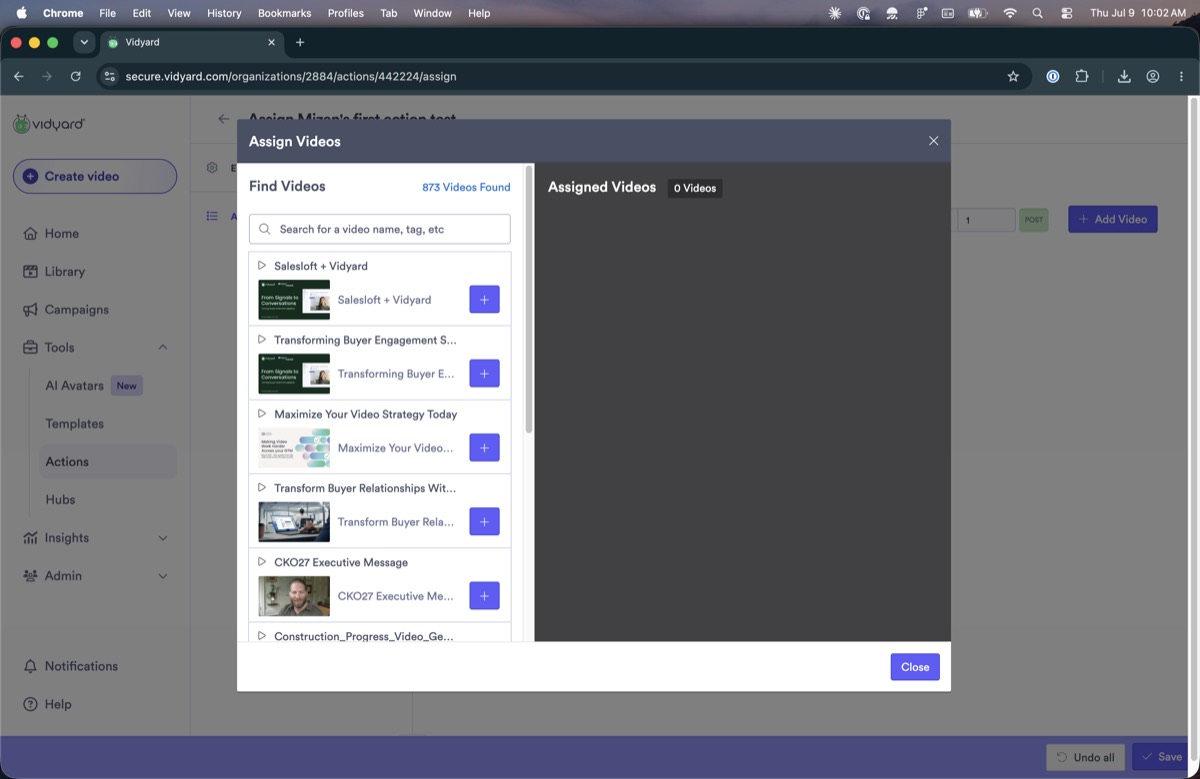
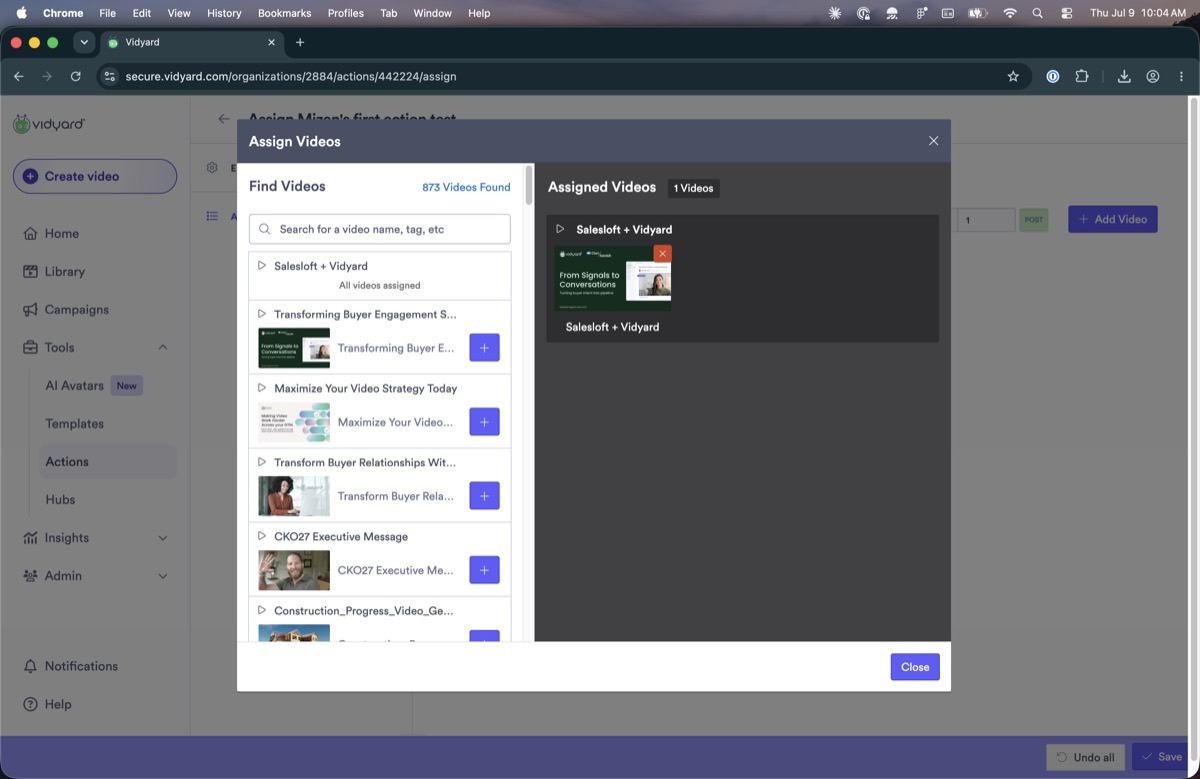
Adding videos to an action is confusing

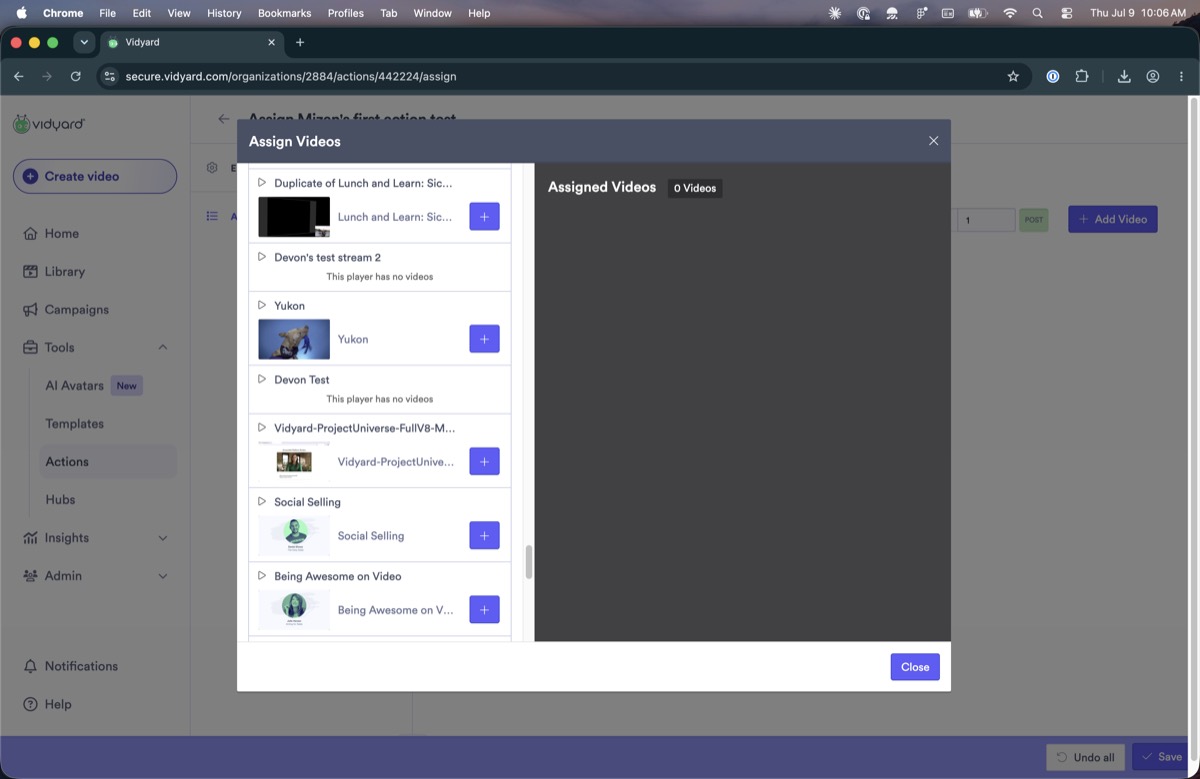
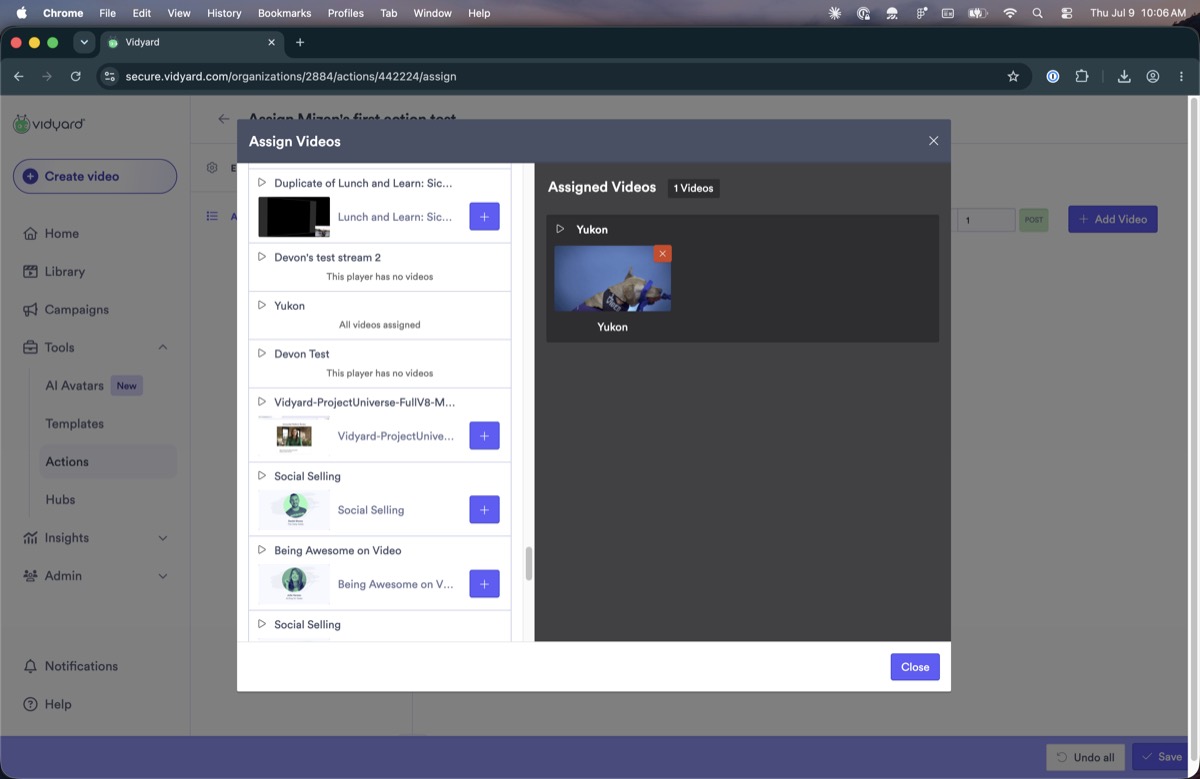
The dialog for adding videos to an action is hard to follow and looks dated next to the rest of the product. After you select a video, its name stays in the left-hand list with “All videos assigned” shown beneath it, as if each video were its own playlist, so it is unclear what has actually been assigned.

Assign Videos dialog video pickerAssign Videos dialog with a video assignedAssign Videos dialog with dated styling
The Assign Videos dialog, dated and unlike the rest of the product. After you pick a video, its name stays in the left list with “All videos assigned” beneath it.
6
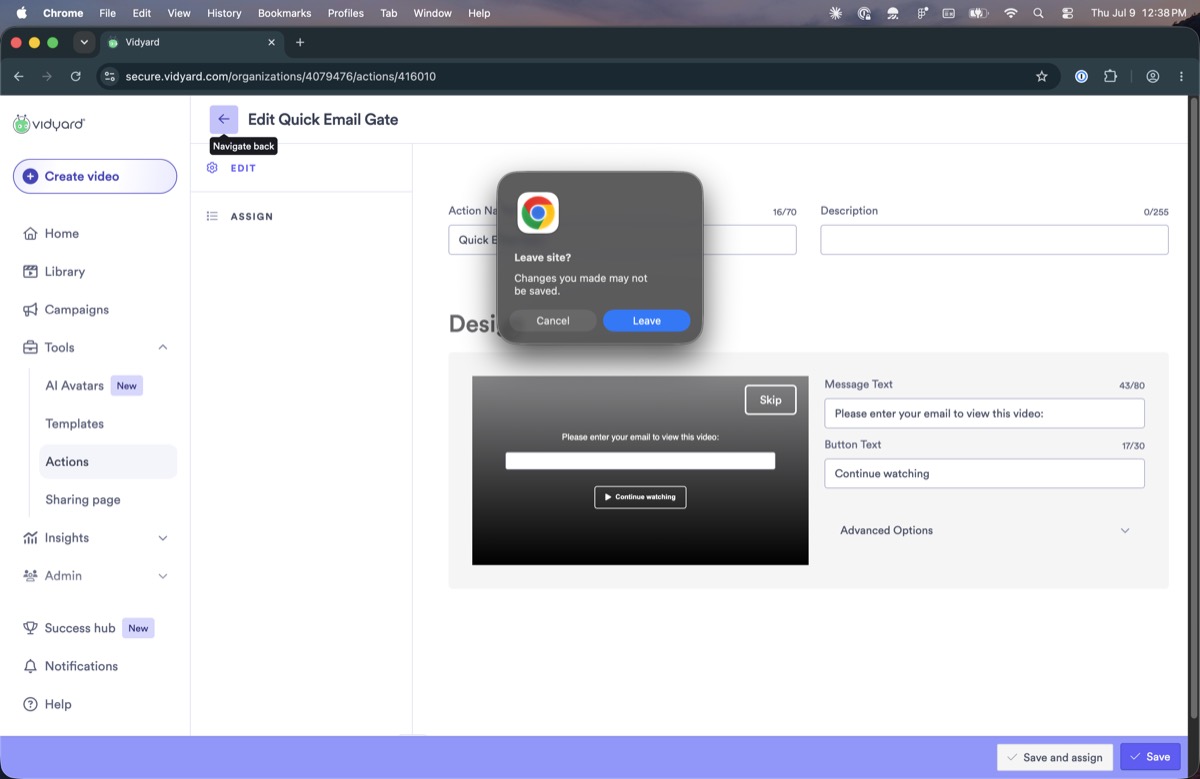
Leaving a folder action triggers the browser's own “unsaved changes” warning

Clicking back on a folder action fires Chrome's native “Leave site? Changes you made may not be saved” dialog, even when nothing has been changed, instead of the product's own confirmation. Team actions auto-save and never hit this; folder actions don't, so the two behave differently.

Browser native Leave site dialog when navigating back from a folder action
Going back from a folder action triggers the browser's own “Leave site?” dialog rather than the product's confirmation pattern.
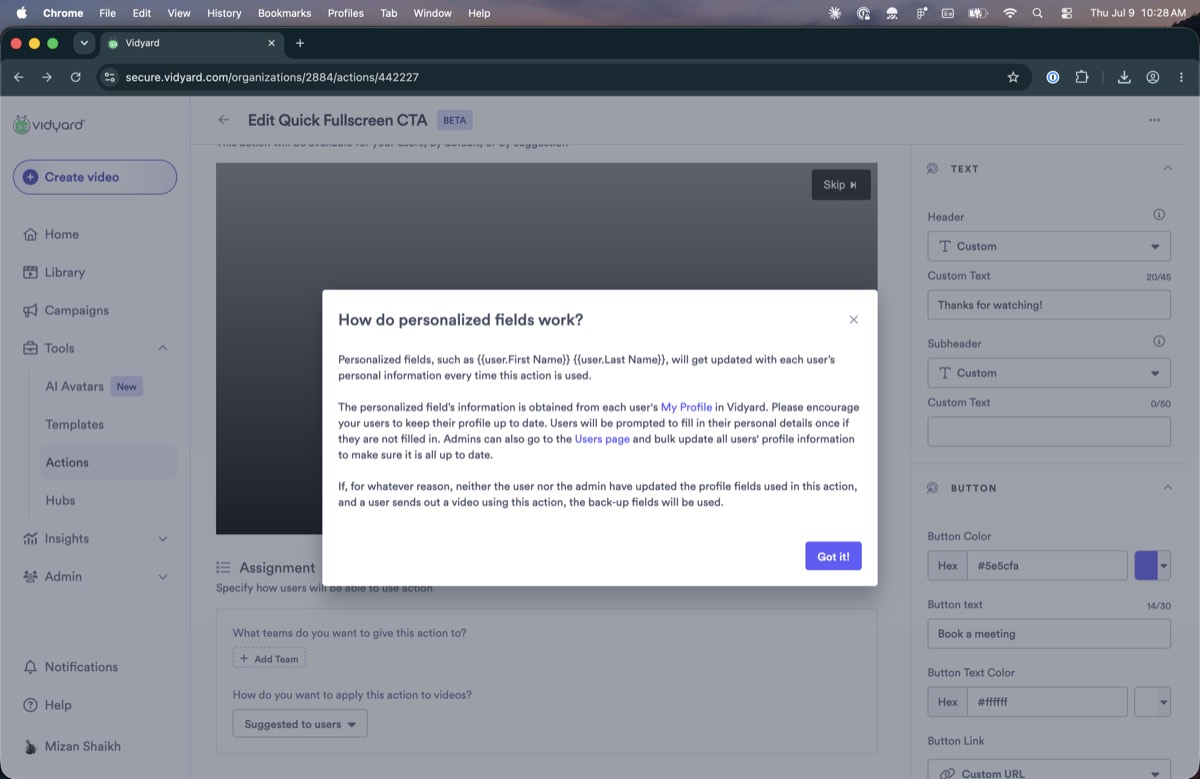
7
Clicking a tooltip opens a modal

Clicking what looks like a tooltip opens a full modal, which is not how tooltips behave anywhere else in the product. The modal is a dense wall of text that is hard to scan.

Modal opened from a tooltip, full of dense text
A tooltip that opens a modal of dense text, unlike tooltips elsewhere in the product.

Visual & craft debt

1
The screens look like different generations of the product

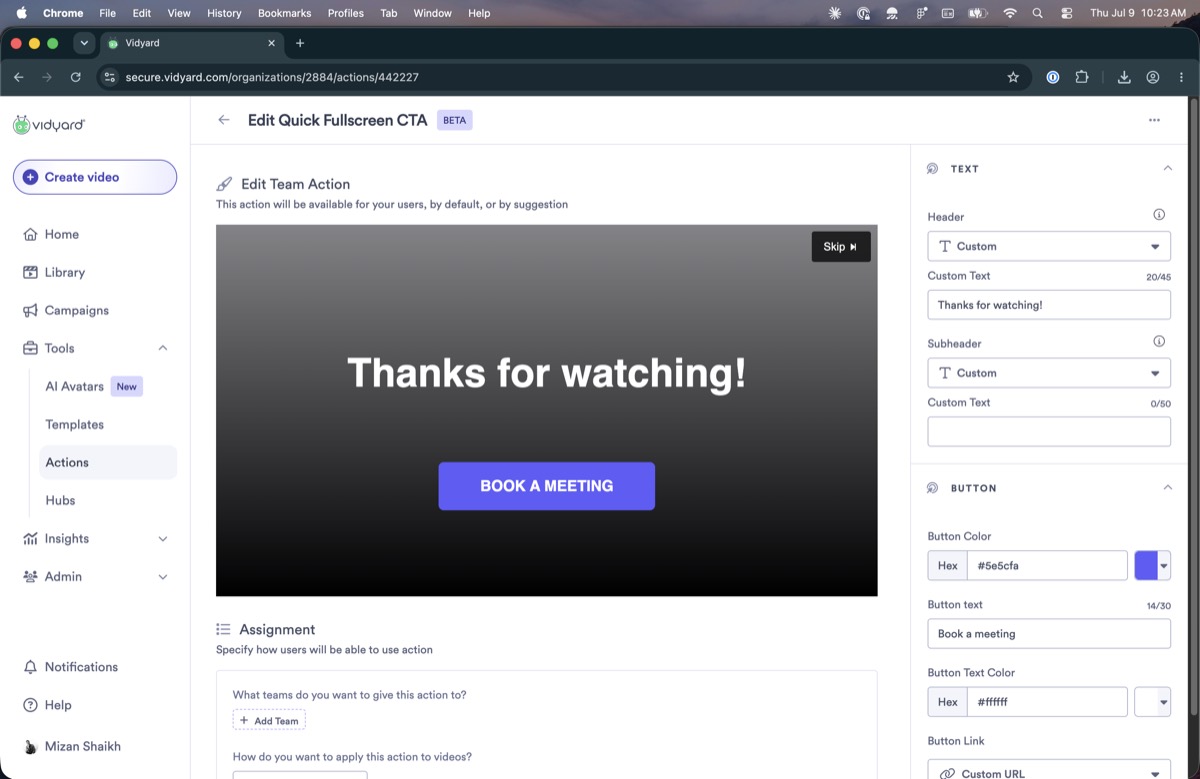
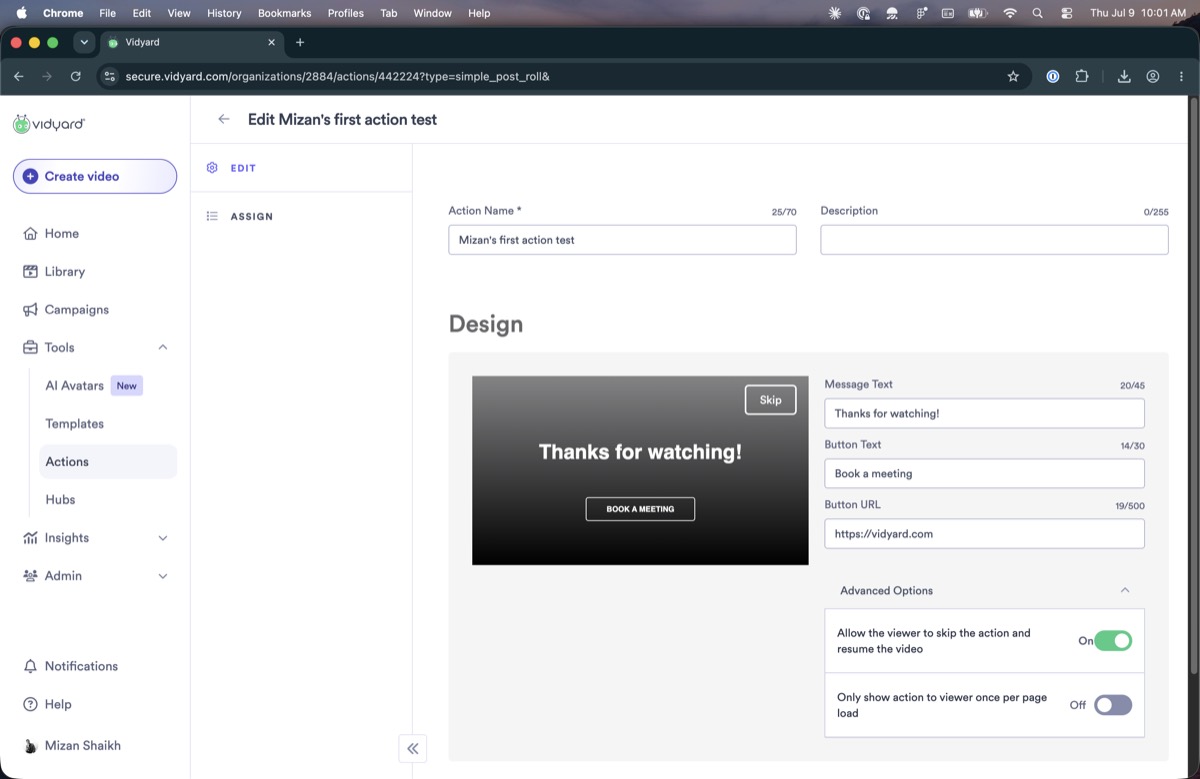
The folder-action editor, the team-action editor, and the newer screens each use a different visual style. The team editor even docks its settings panel on the right, while the folder editor docks its on the left. Features were added over the years without updating the older screens to match, so the feature has no single, consistent look.

Folder action editorNewer team action editor
The older folder-action editor (left) next to the newer team-action editor (right).
2
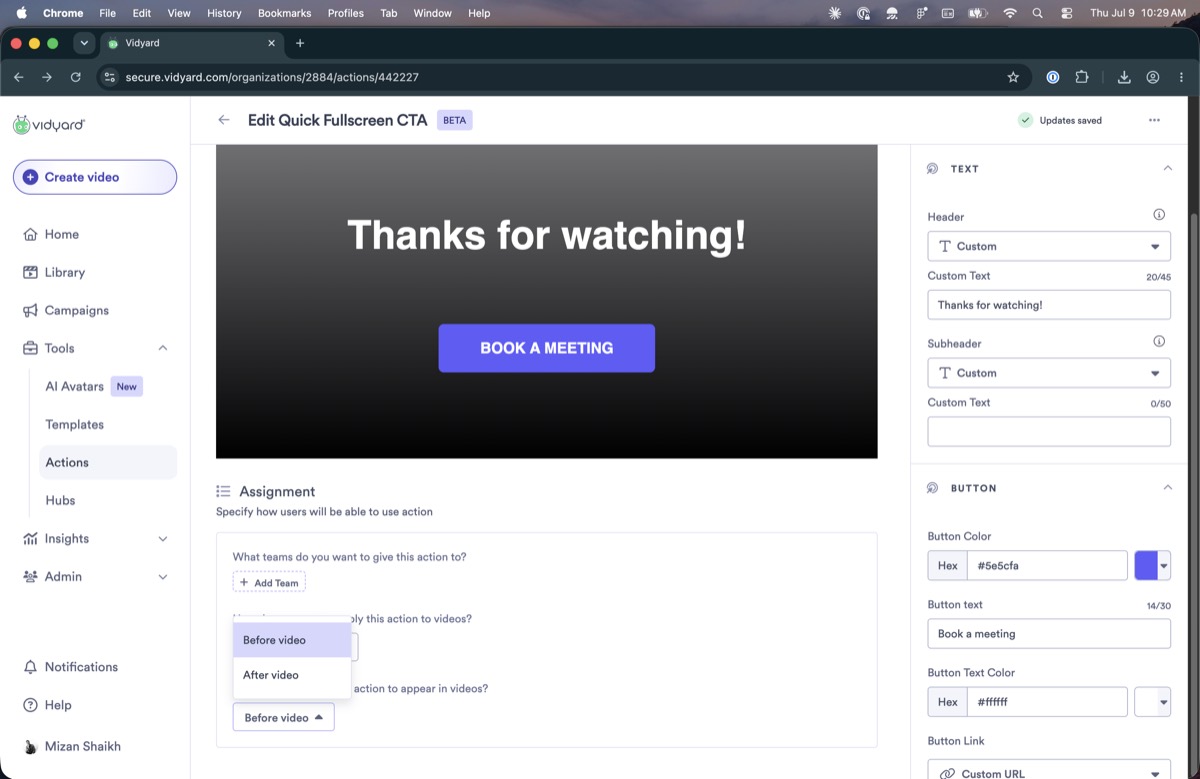
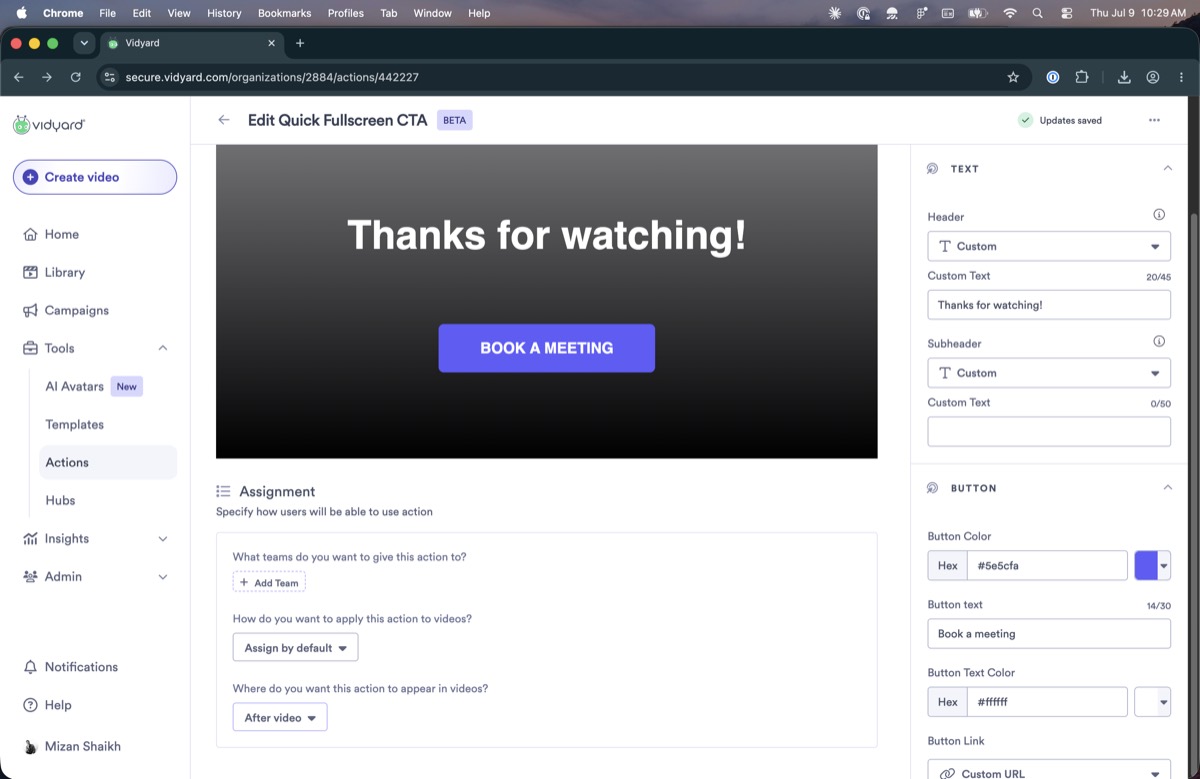
The before/after-video placement uses yet another pattern

Choosing whether an action plays before or after the video uses a different control here (a dropdown) than the Pre/Post scrubber used for the same choice elsewhere, adding more inconsistency between surfaces.

Before and after video placement dropdown
A before/after-video dropdown here, versus the Pre/Post scrubber used for the same choice elsewhere.
3
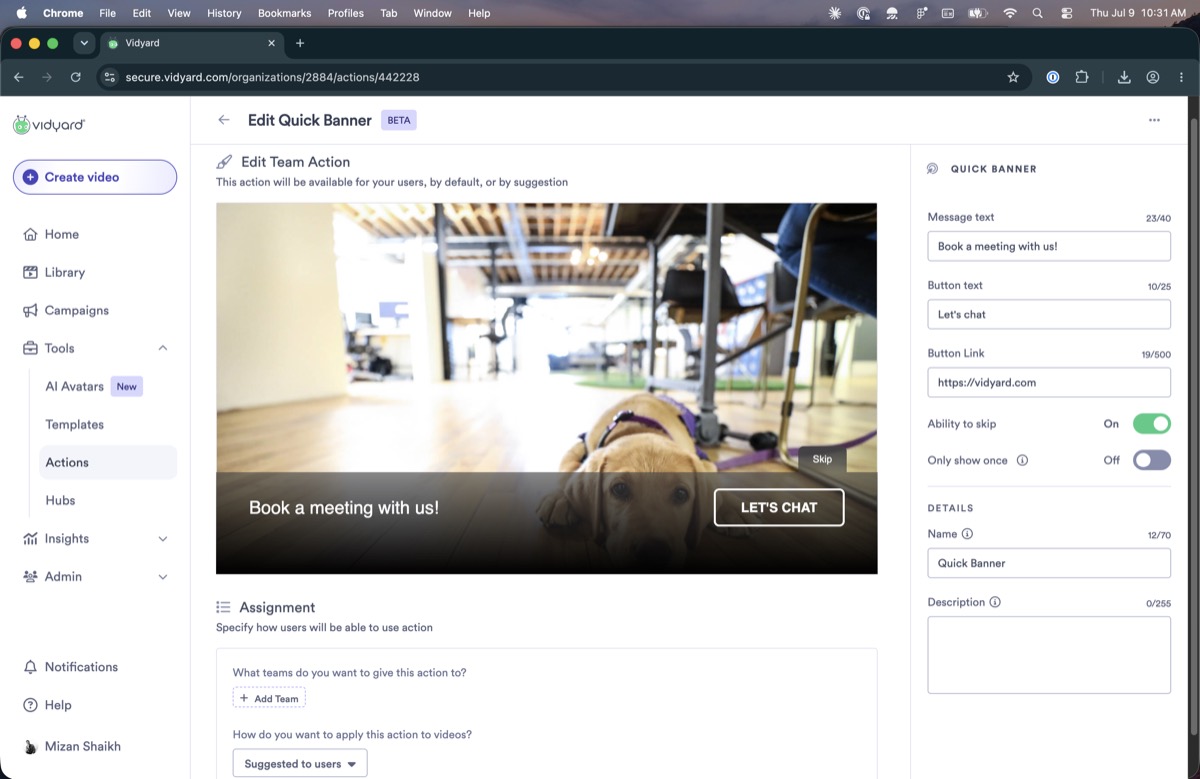
Preview content is inconsistent

Some action previews show a blank screen while others show a stock image (here, a dog), with no indication of whether that is the real content or just a placeholder.

Action preview showing a stock dog image
This preview shows a stock dog image; others are blank, with no cue whether it's real content or a placeholder.

Naming, labels & clarity

1
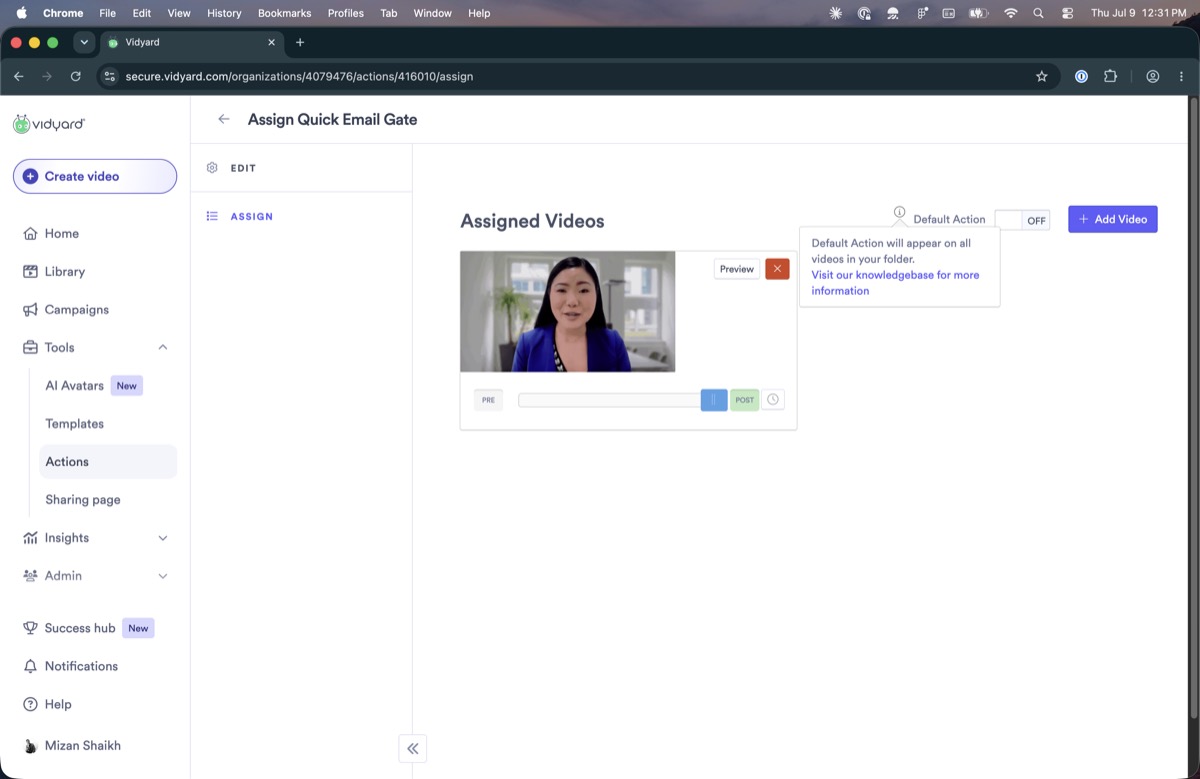
The “default action” setting is explained only by a muted tooltip

A small, low-contrast tooltip says a default action “will appear on all videos in your folder.” It is easy to miss, and it understates the weight of turning one on for an entire folder at once.

Default Action toggle with a small tooltip saying it applies to all videos in the folder
The only explanation of a default action is this small tooltip: easy to overlook, and it doesn't convey how much a default changes.
2
The action's name field is at the bottom of the form

In the team-action editor, the field for naming the action sits below all of the settings, after the fields that depend on it. The folder-action editor places it at the top instead, so the two don't match.

Team-action editor with the name field at the bottom of the settings panel
In the team-action editor the name field sits at the bottom of the panel; the folder-action editor puts it at the top.
3
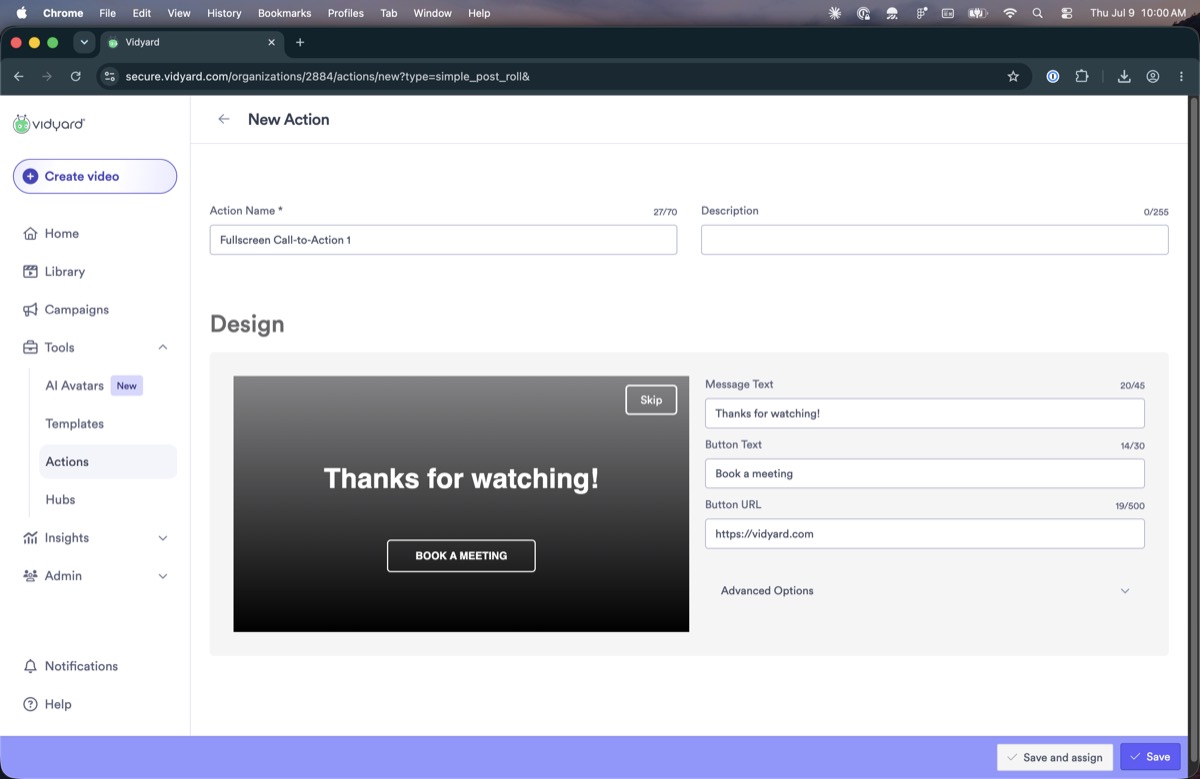
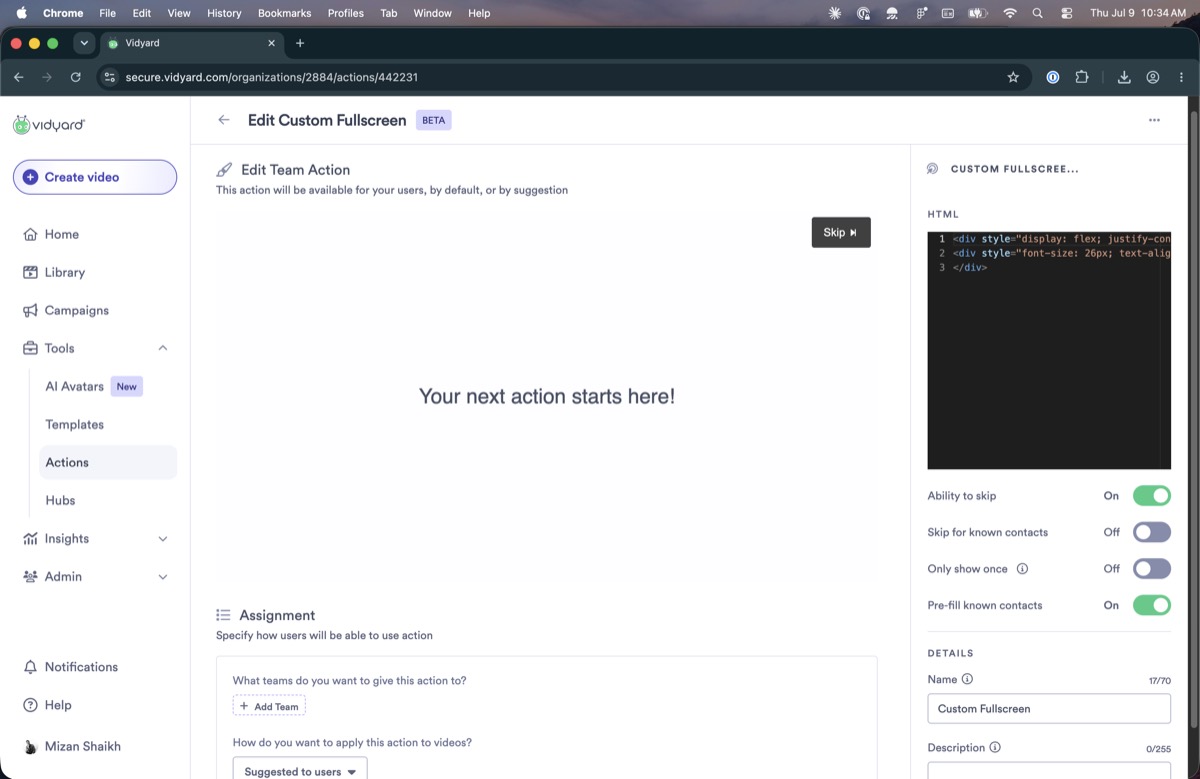
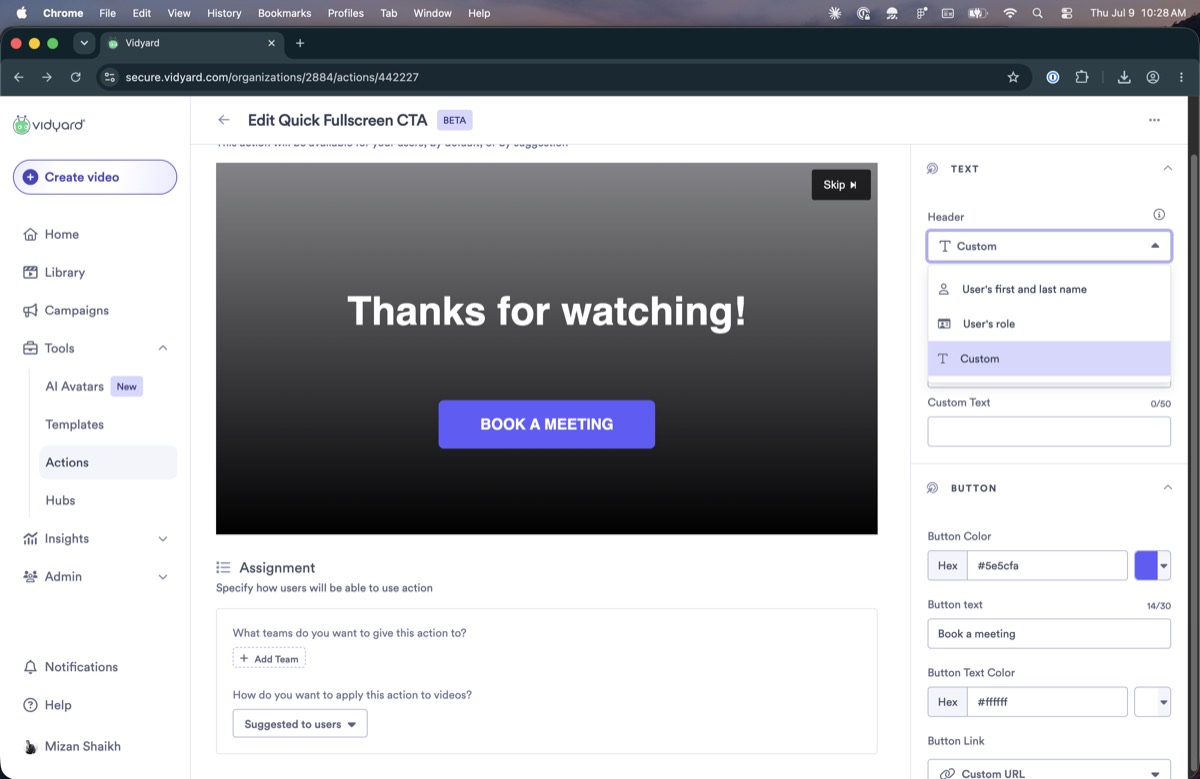
The “Fullscreen” type is actually a code editor

Choosing the Fullscreen action type opens a raw HTML/CSS code editor. The name refers to a display mode, not to the code editor it opens.

Custom Fullscreen action opens an HTML CSS code editor
The Fullscreen action type opens a raw HTML/CSS code editor.
4
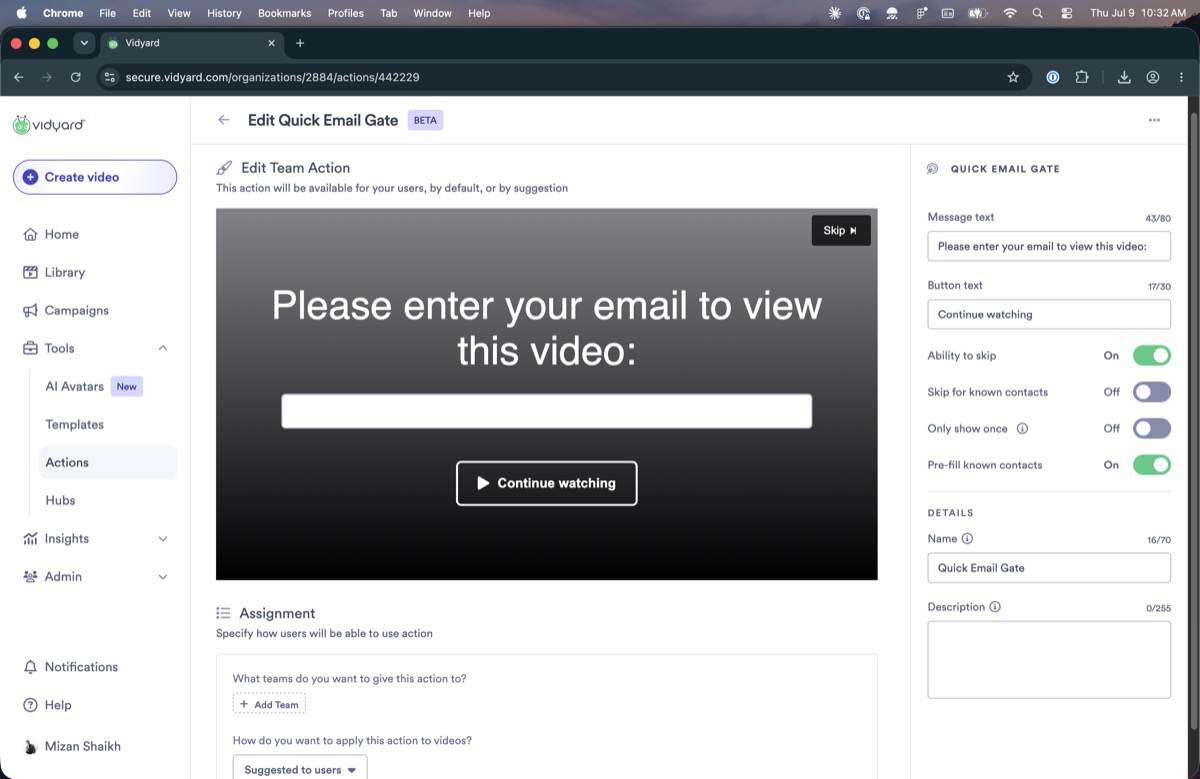
The email gate's “skip known contacts” option is not explained

The email-capture action has a toggle to skip known contacts, but nothing defines who counts as a known contact or what those viewers see instead.

Email gate with skip and pre-fill known contacts toggles
The email gate's skip and pre-fill options for “known contacts,” with no definition of the term.
5
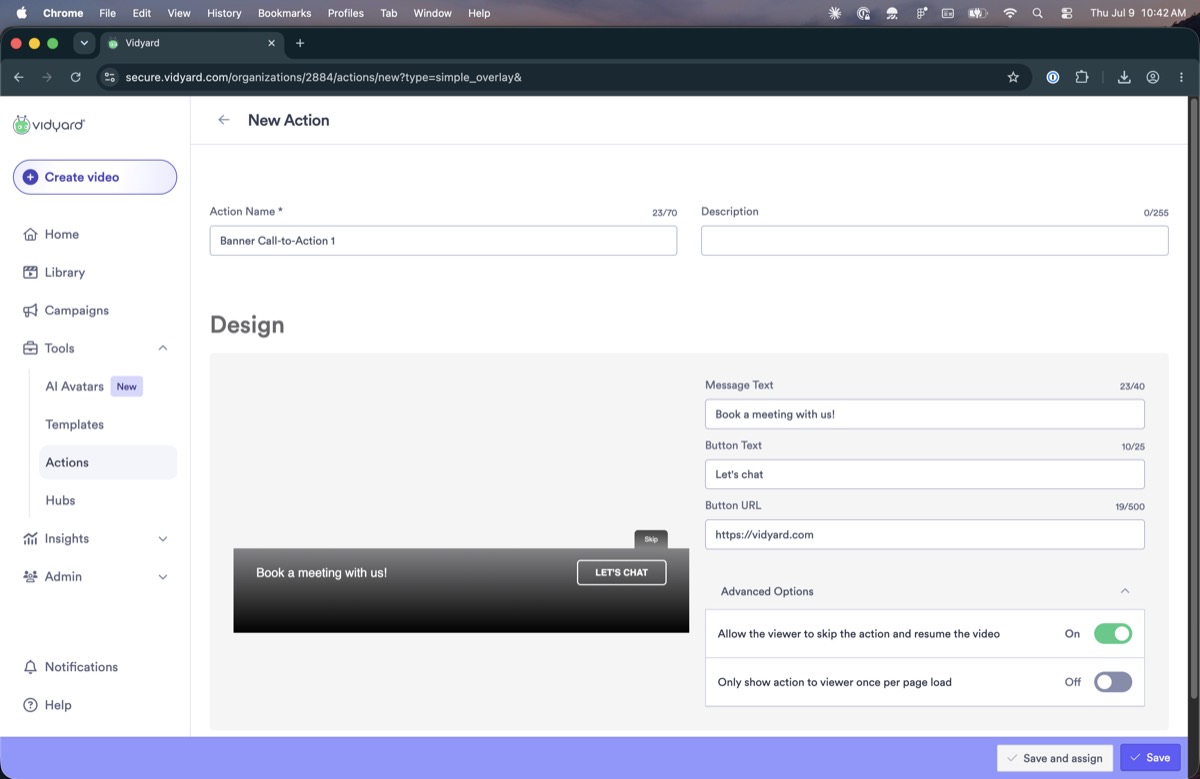
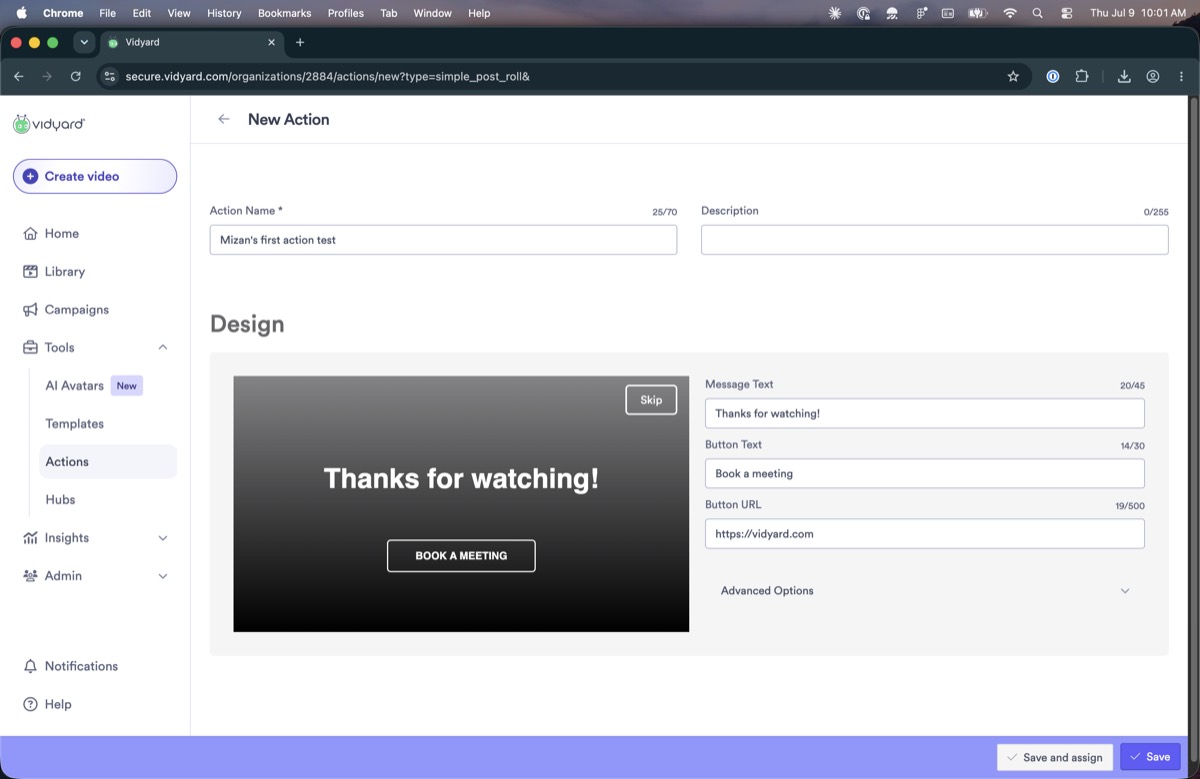
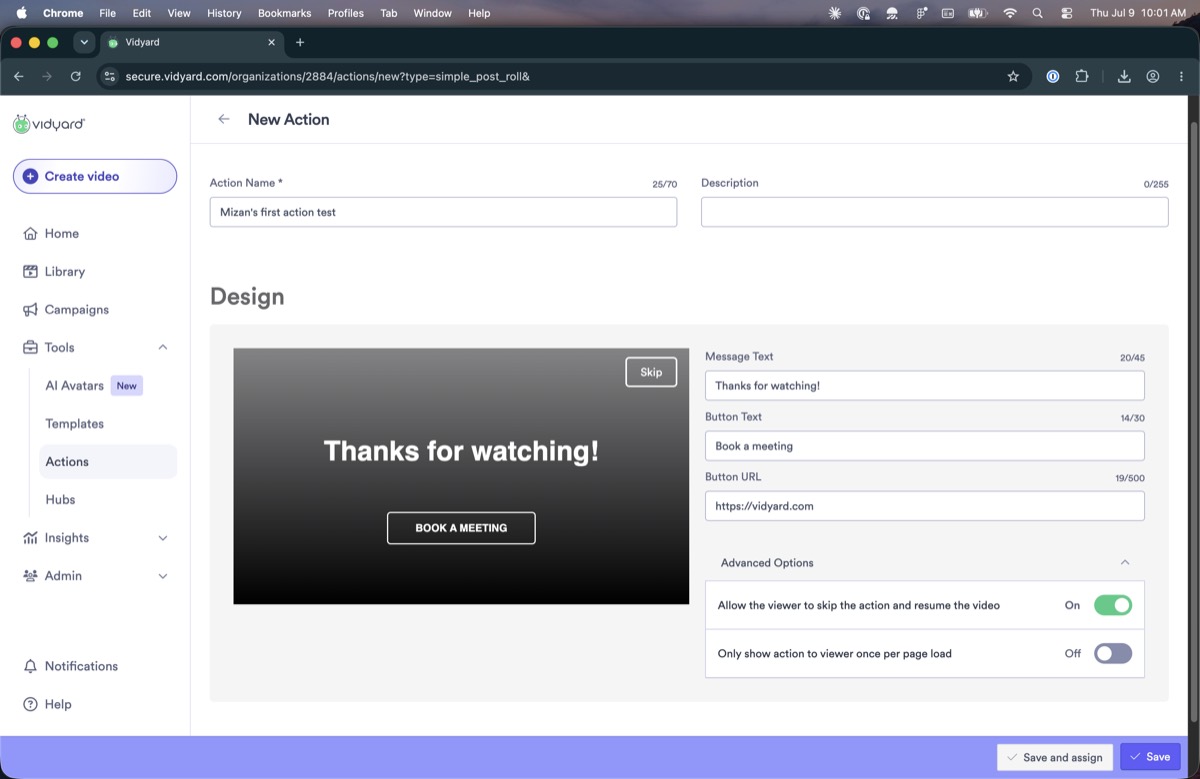
It's unclear what the Save and Save and assign buttons do

The editor has two buttons, “Save” and “Save and assign,” but on first look it is not clear what each one does or how they differ. They also use a button style unlike the rest of the product and look dated.

Action editor with Save and Save and assign buttons
The editor's two buttons, “Save” and “Save and assign”, in a style unlike the rest of the product.
6
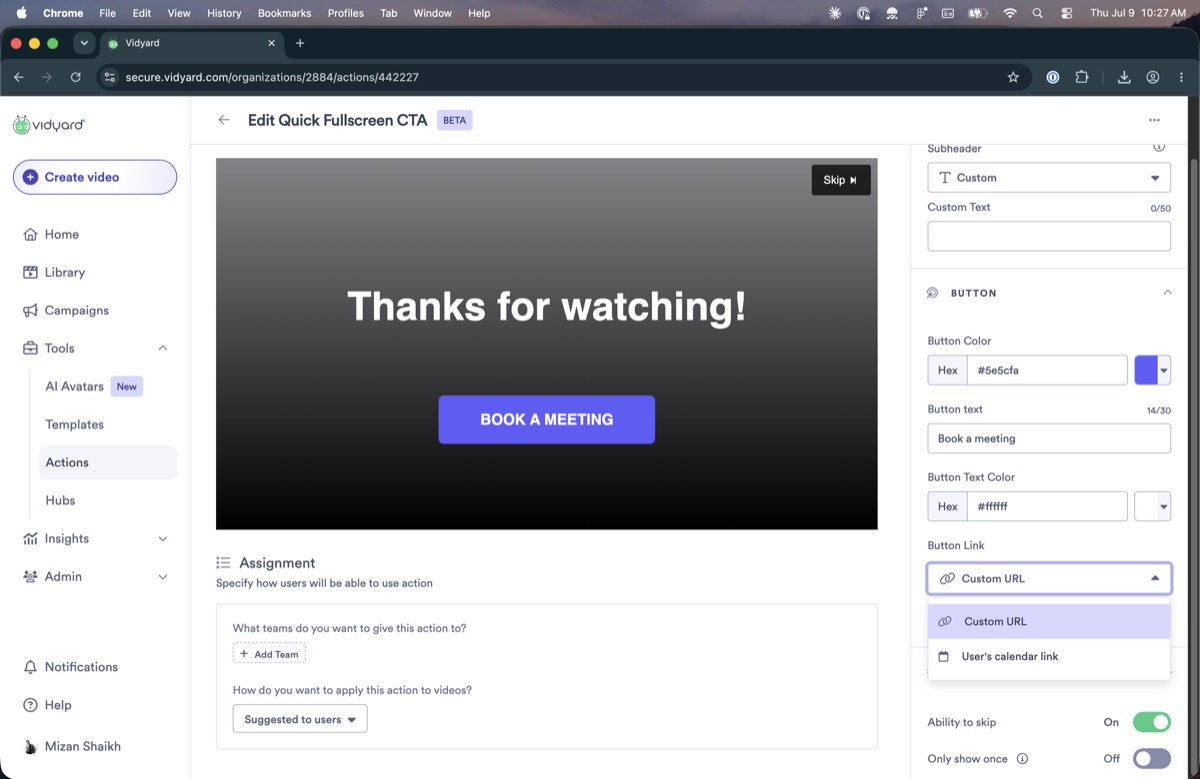
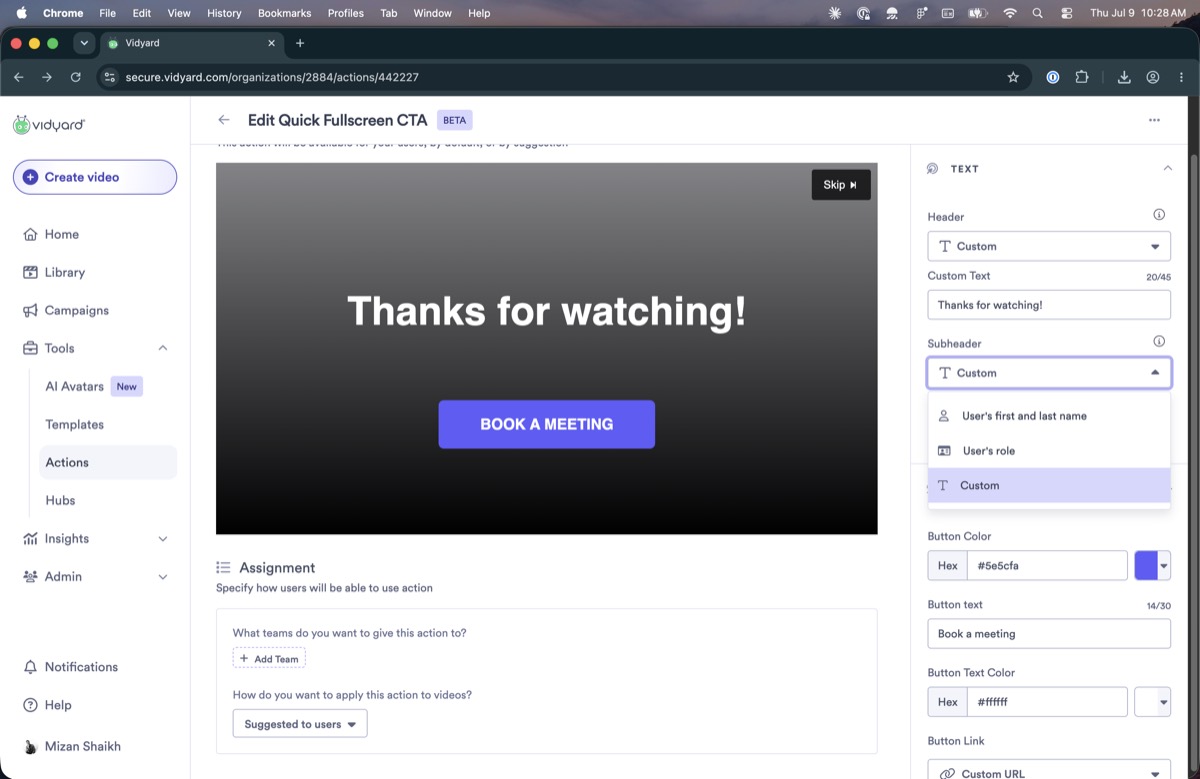
“User's calendar” is ambiguous about who the “user” is

A button-link option labelled “User's calendar” reads as though “user” means the viewer, but it actually refers to your Vidyard colleagues who will use the action, though their profiles may not even be filled in. It's unclear who it applies to.

Button link option labelled User's calendar
The “User's calendar” link option: “user” reads as the viewer, but means your colleagues who use the action.
7
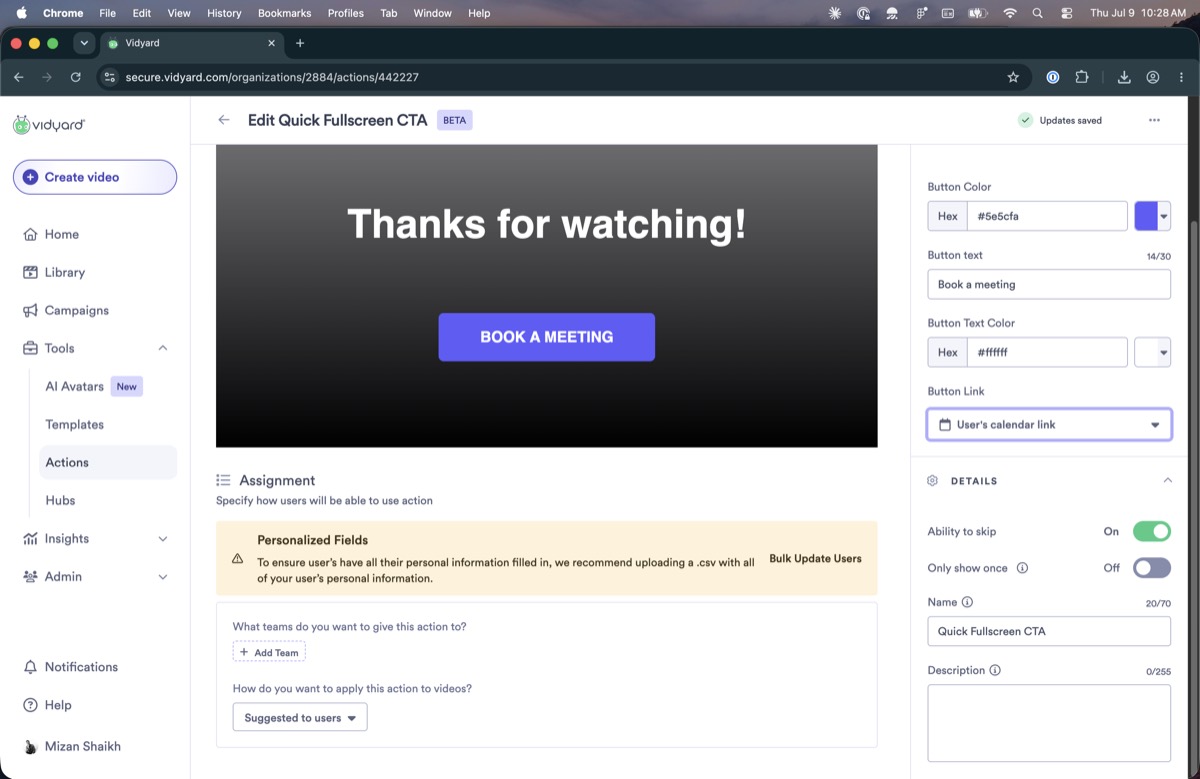
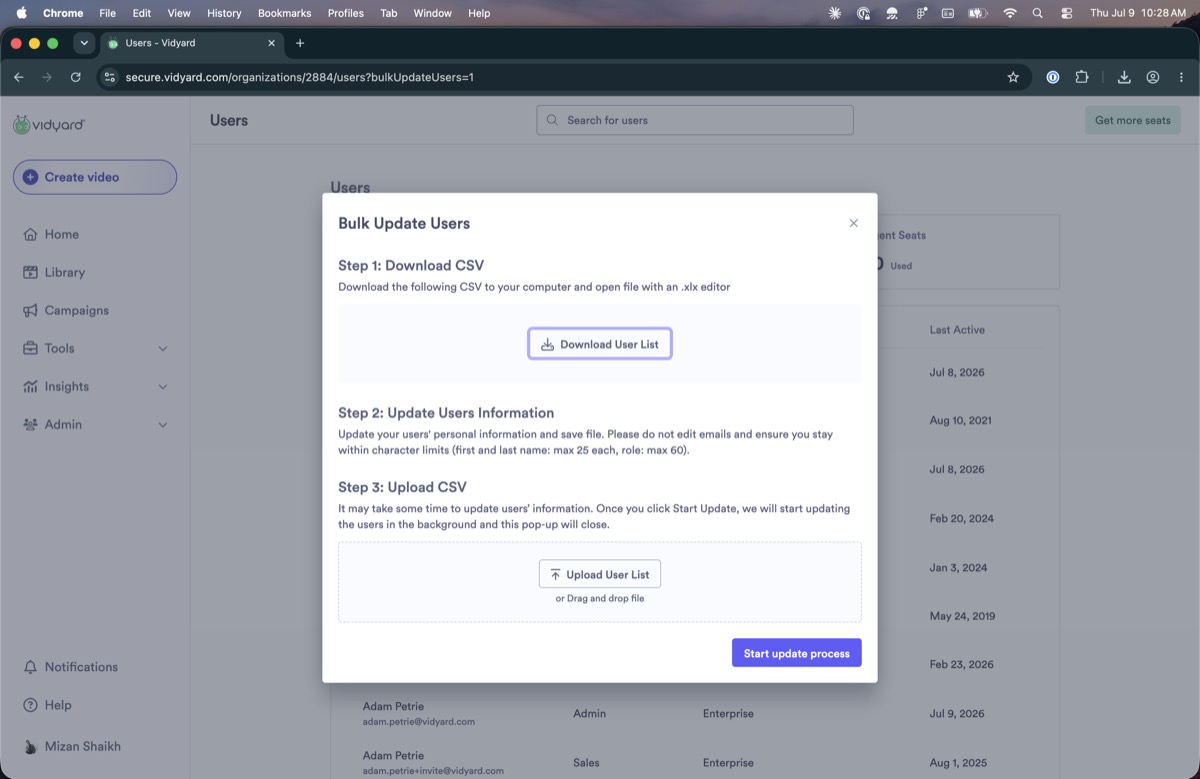
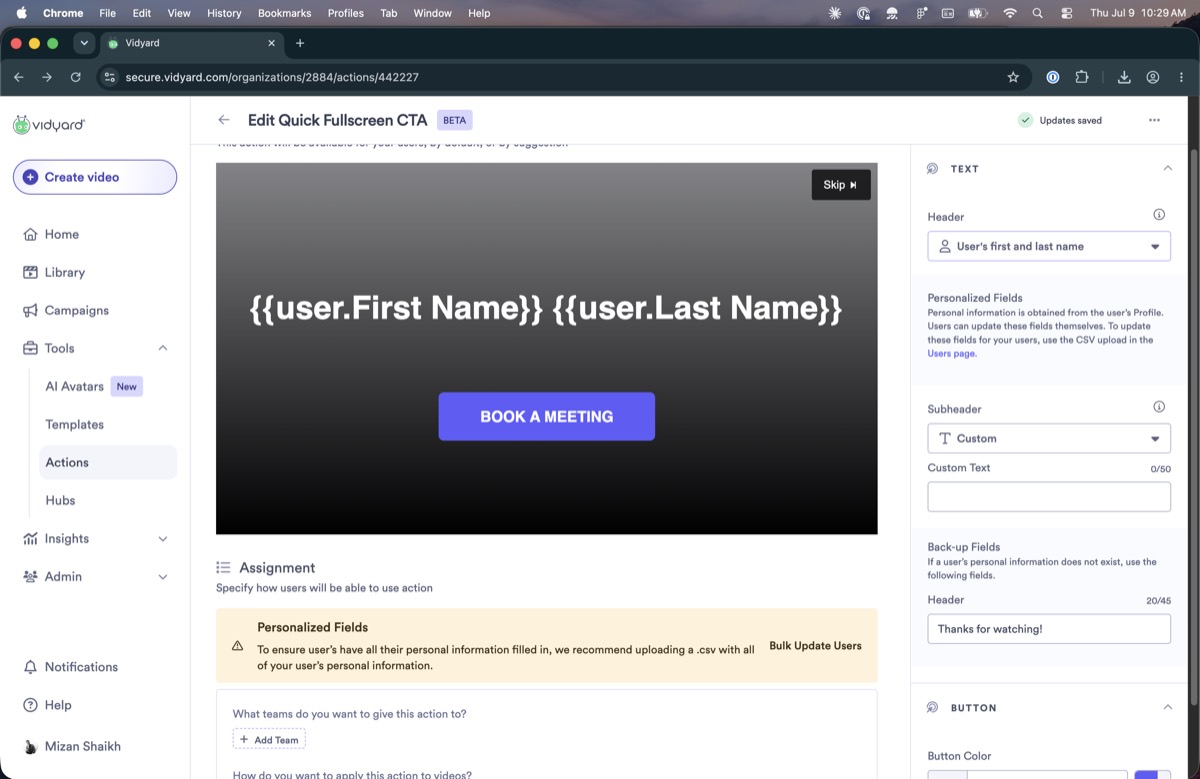
It's unclear what to upload to fill the personalized fields

The personalized-fields setup points you to a bulk CSV upload, but it does not make clear what the file should contain or how it ensures the fields get filled.

Personalized fields note pointing to bulk updateBulk Update Users CSV modal
The personalized-fields note (left) sends you to a bulk CSV upload (right), without making clear what to provide.

Open questions

These couldn't be settled by using the product. They need the DRI (Todd) or the code. The first set blocks any accurate description of the model.

Precedence & inheritance

Q1
What is the full precedence order across team / folder / video?

And how does the “default” flag change it? We have fragments (team > folder), not the authoritative order.

Q2
Is the video-level action actually highest priority?

We were told yes, but a folder default locked the video and couldn't be overridden.

Q3
Can a folder action ever be overridden on a video?

And does it depend on whether the folder action is a default vs. an assigned one?

Q4
Is there an account-level default distinct from a folder default?

“Default” is used loosely; we need to know how many default scopes exist.

Q5
How does a team action attach, exactly?

Strictly via the creator's team? Can a user belong to more than one team?

Model, controls & correctness

Q6
What do the always-disabled controls do, and why are they disabled?

The “shift” / “start” / “pre” controls never enabled during the session.

Q7
Which editor buttons are functional vs. dead?

Is the non-working state a live bug, or unbuilt UI that shipped visible?

Q8
Is the assignment model we reverse-engineered correct?

We tested our way to it under time pressure, so confirm against the code before relying on it.

Q9
Is there any real reason team and folder actions are separate systems?

A genuine constraint, or purely historical? This decides whether the two can be collapsed into one.

Appendix, unplaced screenshots

Screenshots I couldn't confidently slot inline, mostly bursts of the same editor, assignment, and preview screens. Numbers are gallery references only; tell me which belong where and I'll move them up. Click any to open it.